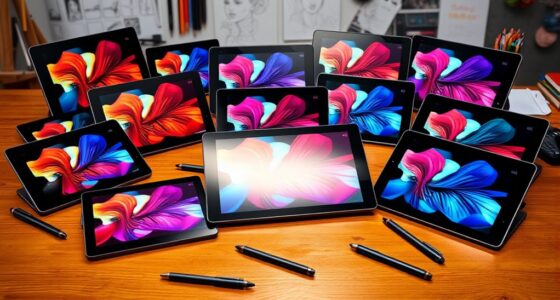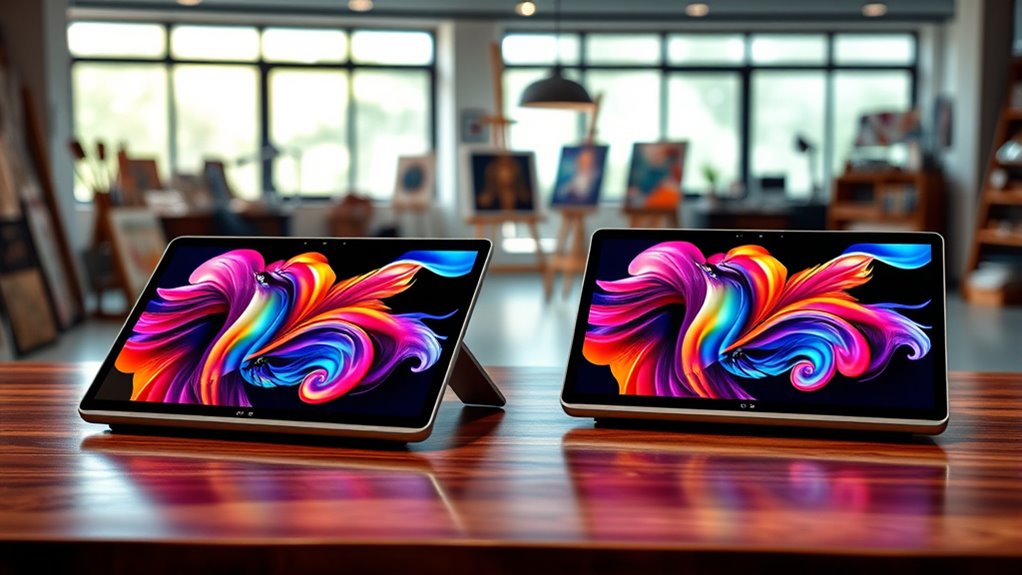

For a high-end graphics tablet for art, I’d start with the XPPen Artist Pro 24 Gen 2 as the strongest all-around choice for a spacious, high-refresh drawing display. The XPPen Artist Ultra 16 stands out for artists who want 4K OLED and touch, while the Wacom Cintiq 16 suits buyers who prioritize Wacom’s pen-focused workflow. The main tradeoffs are screen size versus portability, display features versus workspace cost, and a built-in screen versus a simpler pen tablet. I compare all 13 models by drawing experience, display, ergonomics, and fit for different art setups. Read on for the full breakdown and help choosing the right tablet for your work.

Get the latest gadgets delivered free with Prime
- Fast, free delivery on millions of items
- Prime Video, Amazon Music and more included
- Member-only deals all year
Complete the kit



Key Takeaways
- The Artist Pro 24 Gen 2 leads for a large-screen workflow: its 23.8-inch QHD display and 165Hz refresh rate make it the most compelling fit here for artists who want room to work and responsive on-screen drawing.
- The Artist Ultra 16 is the display-focused premium pick: 4K OLED and touch set it apart, but its smaller screen makes it a different kind of upgrade from the large-format Artist Pro 24.
- Wacom’s Cintiq 16 and Intuos Pro Medium serve different priorities: the Cintiq gives artists a screen to draw on, while the Intuos Pro avoids a built-in display and suits a desk setup with a separate monitor.
- Portable display models make real compromises: the Artist Pro 16 Gen2, Kamvas 13 Gen 3, Artist 13.3 Pro V2, Artist 13.3 Pro, Artist 15.6 Pro V2, and Artist12 trade workspace for easier placement and transport.
- A high-end art setup does not always need a screen: the Deco 01 V3 and HUION Inspiroy H1060P offer a simpler, screenless workflow, while the Wacom Intuos Pro Medium adds a more premium pen-tablet option.
| XP-Pen Artist 24 Pro 23.8-Inch QHD Drawing Display |  | Best Large-Canvas Value | Display: 23.8-inch IPS | Resolution: 2560 × 1440 (2.5K QHD) | Color gamut: 118% sRGB, 84% NTSC, 90% Adobe RGB | VIEW ON AMAZON | See Our Full Breakdown |
| Wacom Cintiq 16 Drawing Tablet with QHD Screen and Pro Pen 3 |  | Best Color-Focused Mid-Size Display | Display: 16-inch IPS | Resolution: 2560 × 1600 (WQXGA) | Color coverage: 99% DCI-P3 and 100% sRGB | VIEW ON AMAZON | See Our Full Breakdown |
| XPPen Artist 15.6 Pro V2 Drawing Tablet with Screen |  | Best Compact Feature Set | Display: 15.6 inches | Pen pressure: 16,384 levels | Color gamut: 99% sRGB, 96% Adobe RGB, 96% DCI-P3 | VIEW ON AMAZON | See Our Full Breakdown |
| XPPen Artist Pro 24 Gen 2 23.8″ 165Hz Drawing Tablet with Screen |  | Best Premium Large Display | Display: 23.8 inches | Resolution: 2560 × 1440 (2.5K QHD) | Refresh rate: 165Hz | VIEW ON AMAZON | See Our Full Breakdown |
| Wacom Intuos Pro Medium Bluetooth Graphic Drawing Tablet with ProPen 3 |  | Best Premium Screenless Tablet | Active area: 11.4 × 8.1 inches (291 × 206 mm) | Pen: Pro Pen 3 | Pen pressure: 8192 levels | VIEW ON AMAZON | See Our Full Breakdown |
| HUION Inspiroy H1060P Graphics Drawing Tablet, 10 × 6.25 in |  | Best Shortcut-Rich Screenless Tablet | Working area: 10 × 6.25 inches | Stylus: PW100, battery-free | Pressure levels: 8,192 | VIEW ON AMAZON | See Our Full Breakdown |
| XP-PEN Artist12 11.6″ FHD Drawing Monitor with Battery-Free PN06 Pen, Glove, and 8192 Pressure Levels |  | Best Compact Screen Display | Display: 11.6-inch IPS | Resolution: 1920 × 1080 (Full HD) | Color gamut: 72% NTSC / 100% sRGB | VIEW ON AMAZON | See Our Full Breakdown |
| XP-Pen Deco 01 V3 Drawing Tablet, 10 x 6.25 Inches, 16K Battery-Free Stylus, 8 Shortcut Keys |  | Best Screenless Pen Performance | Active area: 10 × 6.25 inches | Stylus: Battery-free | Pressure levels: 16,384 | VIEW ON AMAZON | See Our Full Breakdown |
| XPPen Artist Ultra 16 4K OLED Touchscreen Drawing Tablet |  | Best Premium Color and Touch Display | Screen: 15.6-inch OLED | Resolution: 3840 × 2160 (4K UHD) | Color coverage: 99% Adobe RGB, 99% sRGB, 98% Display P3 | VIEW ON AMAZON | See Our Full Breakdown |
| HUION Kamvas 13 (Gen 3) Drawing Tablet with Screen |  | Best Mid-Size Pen Display | Display size: 13.3 inches | Pen pressure sensitivity: 16,384 levels | Initial activation force: 2 g | VIEW ON AMAZON | See Our Full Breakdown |
| XP-Pen Artist Pro 16 Gen2 2.5K Drawing Tablet with Screen |  | Best Overall for Detailed Desktop Work | Display size: 16 inches | Resolution: 2560 × 1600 | Aspect ratio: 16:10 | VIEW ON AMAZON | See Our Full Breakdown |
| XP-Pen Artist 13.3 Pro Drawing Tablet with Screen |  | Best Compact Screen Tablet | Display: 13.3-inch fully laminated FHD | Viewing angle: 178 degrees | Color gamut: 88% NTSC; 91% Adobe RGB; 123% sRGB | VIEW ON AMAZON | See Our Full Breakdown |
| XP-Pen Artist 13.3 Pro V2 Drawing Tablet with Screen |  | Best Compact Color Coverage | Display: 13.3-inch Full HD IPS | Stylus: Battery-free X3 Pro smart chip stylus | Pressure levels: 16,384 | VIEW ON AMAZON | See Our Full Breakdown |
| high end graphics tablet for art | Display | Connectivity |
|---|---|---|
| XP-Pen Artist 24 Pro 23.8-Inch | 23.8-inch IPS | USB-C and HDMI |
| Wacom Cintiq 16 Drawing Tablet | 16-inch IPS | USB-C; compatible computers need DisplayPort Alt Mode or Thunderbolt 3 or 4 |
| XPPen Artist 15.6 Pro V2 Drawi | 15.6 inches | — |
| XPPen Artist Pro 24 Gen 2 23.8 | 23.8 inches | USB-C, DisplayPort, and HDMI |
| Wacom Intuos Pro Medium Blueto | — | USB and Bluetooth |
| HUION Inspiroy H1060P Graphics | — | — |
| XP-PEN Artist12 11.6" FHD Draw | 11.6-inch IPS | HDMI and USB-A |
| XP-Pen Deco 01 V3 Drawing Tabl | — | USB-C to USB-C; USB-C to USB-A cable and adapter included |
| XPPen Artist Ultra 16 4K OLED | — | — |
| HUION Kamvas 13 | — | — |
| XP-Pen Artist Pro 16 Gen2 2.5K | — | Requires connection to a computer or compatible device |
| XP-Pen Artist 13.3 Pro Drawing | 13.3-inch fully laminated FHD | — |
| XP-Pen Artist 13.3 Pro V2 Draw | 13.3-inch Full HD IPS | — |
More Details on Our Top Picks
XP-Pen Artist 24 Pro 23.8-Inch QHD Drawing Display
The Artist 24 Pro gives illustrators a roomy 23.8-inch workspace without stepping up to the more specialized Artist Pro 24 Gen 2. Its 2.5K QHD display, anti-glare surface, and wide viewing angles make it easier to keep references beside a canvas and work on fine details at scale. The two dial wheels and 20 shortcut keys put frequent controls within reach, while the included adjustable stand helps position the large screen for longer sessions. Compared with the Gen 2, this model has a lower reported pen pressure level and lacks its 165Hz refresh rate and wireless shortcut keyboard. It still includes two battery-free pens, but the computer-dependent design and substantial desk footprint make it a poor match for mobile work or compact setups.
Pros:- Large 23.8-inch QHD screen provides generous space for detailed art and reference panels.
- Anti-glare surface and 178-degree viewing angle support comfortable viewing across the display.
- 20 customizable shortcut keys and dual dial wheels offer hands-on workflow control.
- Includes two battery-free styluses, an adjustable stand, and USB-C and HDMI connectivity.
Cons:- Requires a connected computer and cannot run drawing software on its own.
- Its large footprint can crowd smaller desks.
- The 8192-level pen specification and 220 RPS report rate are less advanced on paper than the Artist Pro 24 Gen 2’s 16,384 pressure levels and 165Hz display.
Best for: Digital illustrators and photo editors who want a large, computer-connected canvas with physical workflow controls and have room for a 23.8-inch display.
Not ideal for: Artists with limited desk space or anyone who needs a standalone, portable tablet rather than a display that connects to a computer.
- Display:23.8-inch IPS
- Resolution:2560 × 1440 (2.5K QHD)
- Color gamut:118% sRGB, 84% NTSC, 90% Adobe RGB
- Pen pressure:8192 levels
- Pen tilt:60°
- Controls:20 customizable shortcut keys and dual dial wheels
- Connectivity:USB-C and HDMI
- Mounting:100 × 100 mm VESA
Our verdict“Choose the Artist 24 Pro for a spacious, control-rich drawing display, but pick the Artist Pro 24 Gen 2 if its faster screen and higher pen-pressure specification matter more.”
Wacom Cintiq 16 Drawing Tablet with QHD Screen and Pro Pen 3
The Wacom Cintiq 16 suits artists who want a high-resolution screen without dedicating a desk to a 23.8-inch display. Its 16-inch panel packs 2560 × 1600 resolution into a smaller working area, and its stated 99% DCI-P3 and 100% sRGB coverage make it a strong fit for color-focused illustration and design. The Pro Pen 3 adds pressure sensitivity and tilt, while built-in legs set the display at a 20-degree angle. Compared with the larger XP-Pen Artist 24 Pro, the Cintiq is easier to fit into a compact workspace, but it gives up screen area and the XP-Pen’s dial wheels and extensive shortcut keys. The standalone legs are limited, and some computer setups need additional cables, so it is less convenient to position freely than a display supplied with an adjustable stand.
Pros:- 16-inch WQXGA screen provides fine detail in a more compact footprint than 23.8-inch displays.
- Specified 99% DCI-P3 and 100% sRGB coverage suit color-conscious art and design workflows.
- Pro Pen 3 supports 8192 pressure levels and tilt.
- Built-in legs provide a ready-to-use 20-degree working angle.
Cons:- Three pen shortcut keys provide fewer built-in controls than the Artist 24 Pro’s 20 keys and dual dials.
- The adjustable stand is sold separately, limiting positioning options out of the box.
- Computer compatibility and cable needs may require checking the display connection before purchase.
Best for: Illustrators and designers who prioritize broad color coverage and a sharp, mid-size pen display from a workspace-conscious setup.
Not ideal for: Artists who need a large canvas, many built-in shortcut controls, or an adjustable stand included in the box.
- Display:16-inch IPS
- Resolution:2560 × 1600 (WQXGA)
- Color coverage:99% DCI-P3 and 100% sRGB
- Color depth:8-bit
- Pen:Pro Pen 3
- Pen pressure:8192 levels
- Pen controls:Tilt support and 3 shortcut keys
- Working angle:20 degrees with built-in legs
- Connectivity:USB-C; compatible computers need DisplayPort Alt Mode or Thunderbolt 3 or 4
Our verdict“Pick the Cintiq 16 if color coverage and a compact, high-resolution display matter more than a large canvas or extensive physical controls.”
XPPen Artist 15.6 Pro V2 Drawing Tablet with Screen
The Artist 15.6 Pro V2 packs advanced pen input and useful controls into a display that takes less desk space than the Artist 24 Pro. Its 16,384 pressure levels, full lamination, and anti-glare screen are aimed at artists who value precise pen response and a close-feeling cursor position. The 99% sRGB and 96% Adobe RGB coverage also make it a more color-capable compact choice than a basic screen tablet. A Red Dial, eight express keys, and an included foldable stand give it a practical workflow advantage over the Wacom Cintiq 16’s three pen shortcut keys. The compromise is the smaller 15.6-inch canvas: artists working on expansive compositions may prefer a 23.8-inch display. Its 250 cd/m² brightness and computer-dependent operation also make it less suited to bright, mobile workspaces.
Pros:- 16,384 pressure levels and tilt support provide a broad range of pen input.
- Full-laminated anti-glare screen helps reduce reflections and the apparent gap between pen tip and cursor.
- Red Dial and eight customizable express keys put common workflow controls close at hand.
- Foldable stand is included, unlike the separately sold adjustable stand for the Wacom Cintiq 16.
Cons:- The 15.6-inch display offers less room for artwork and reference panels than 23.8-inch options.
- Requires a connected computer and is not a standalone drawing tablet.
- 250 cd/m² brightness may be limiting in strongly lit work areas.
Best for: Illustrators who want a compact pen display with high pressure sensitivity, a dial, shortcut keys, and a foldable stand for a computer-based desk setup.
Not ideal for: Artists who need a large working canvas, standalone operation, or a display intended for use in very bright surroundings.
- Display:15.6 inches
- Pen pressure:16,384 levels
- Color gamut:99% sRGB, 96% Adobe RGB, 96% DCI-P3
- Brightness:250 cd/m²
- Contrast ratio:1000:1
- Screen:Full-laminated, anti-glare
- Controls:Red Dial and 8 customizable express keys
- Included stand:Foldable stand AC41
- Compatibility:Windows, Mac OS X, and Chrome OS
Our verdict“Choose the Artist 15.6 Pro V2 for a compact, control-rich display with high pen sensitivity, and choose a 23.8-inch model if canvas area comes first.”
XPPen Artist Pro 24 Gen 2 23.8″ 165Hz Drawing Tablet with Screen
For a professional setup built around a large canvas, the Artist Pro 24 Gen 2 is the most feature-rich display in this group. Its 23.8-inch 2.5K screen and 165Hz refresh rate target artists and animators who want smooth on-screen pen movement while working at scale. Calman-verified color accuracy with Delta E below 1, paired with 99% Adobe RGB and sRGB coverage, gives color-sensitive work a stronger stated accuracy profile than the Artist 24 Pro. Its two 16,384-level styluses, wireless shortcut keyboard, and adjustable stand round out a substantial workstation package. That breadth comes with a familiar large-display constraint: it needs a computer and plenty of desk space. Compared with the Wacom Cintiq 16, it offers far more screen area and controls, but is a much less compact choice.
Pros:- 23.8-inch 2.5K display and 165Hz refresh rate support large-scale work with smooth visual response.
- Calman-verified Delta E below 1 and stated 99% Adobe RGB and sRGB coverage suit color-sensitive workflows.
- Two battery-free styluses offer 16,384 pressure levels and 60-degree tilt support.
- Wireless shortcut keyboard and adjustable stand provide a more complete workstation setup than the Artist 24 Pro.
Cons:- Requires a connected computer and cannot operate as a standalone tablet.
- The 23.8-inch body needs considerable desk space.
- The extensive feature set may be unnecessary for artists who mainly need a compact illustration display like the Artist 15.6 Pro V2.
Best for: Professional illustrators, animators, and designers who want a large, color-accurate display, high refresh rate, and a full set of workflow accessories.
Not ideal for: Mobile artists, users with compact desks, or anyone who wants a self-contained tablet that works without a computer.
- Display:23.8 inches
- Resolution:2560 × 1440 (2.5K QHD)
- Refresh rate:165Hz
- Color gamut:99% Adobe RGB, 99% sRGB, 94% P3
- Color accuracy:Calman-verified, Delta E < 1
- Pen pressure:16,384 levels
- Pen tilt:60 degrees
- Connectivity:USB-C, DisplayPort, and HDMI
- Included accessories:Two styluses, wireless shortcut keyboard, stand, nibs, and cables
Our verdict“Choose the Artist Pro 24 Gen 2 for a premium large-screen workstation with strong stated color accuracy and smooth motion, provided you have the desk space and a computer.”
Wacom Intuos Pro Medium Bluetooth Graphic Drawing Tablet with ProPen 3
The Wacom Intuos Pro Medium takes a different route from every display in this roundup: it is a screenless pen tablet, so the artwork appears on a separate monitor rather than beneath the stylus. That separation can suit artists already working across multiple monitors, while the 11.4 × 8.1-inch active area keeps the tablet compact on the desk. Pro Pen 3 provides 8192 pressure levels and tilt, and the 10 ExpressKeys plus two mechanical dials bring physical controls into reach. USB and Bluetooth connectivity let users choose a wired or wireless setup. Compared with the Artist 15.6 Pro V2, it gives up direct-on-screen drawing and display color coverage, but its smaller footprint can fit a multi-monitor workstation more easily. Artists who rely on seeing the pen directly touch the canvas should choose a display model instead.
Pros:- Compact 11.4 × 8.1-inch active area fits neatly into many multi-monitor workspaces.
- Pro Pen 3 supports 8192 pressure levels and tilt.
- 10 customizable ExpressKeys and two mechanical dials support hands-on workflow control.
- USB and Bluetooth connectivity offer wired and wireless setup options.
Cons:- No built-in display, so drawing requires looking at a separate monitor.
- The 8192-level pen specification is lower than the Artist 15.6 Pro V2 and Artist Pro 24 Gen 2.
- The active area is smaller than the drawing surface offered by the 15.6-inch and 23.8-inch display tablets.
Best for: Experienced illustrators and designers with a calibrated external monitor or multi-monitor setup who prefer a compact, screenless tablet with physical controls.
Not ideal for: Artists who want to draw directly on a display, need a tablet with its own screen, or are uncomfortable coordinating hand movement with a separate monitor.
- Active area:11.4 × 8.1 inches (291 × 206 mm)
- Pen:Pro Pen 3
- Pen pressure:8192 levels
- Tilt support:Yes
- ExpressKeys:10 customizable keys
- Mechanical dials:2
- Connectivity:USB and Bluetooth
- Material:Magnesium
- Tablet size:Medium
Our verdict“Choose the Intuos Pro Medium if you prefer a compact, screenless tool for an existing monitor-based art setup; choose a pen display for direct-on-screen drawing.”
HUION Inspiroy H1060P Graphics Drawing Tablet, 10 × 6.25 in
The Inspiroy H1060P suits artists who would rather keep their focus on a computer monitor than draw on a display. Its 10 × 6.25-inch active area and unusually generous set of 12 press keys plus 16 soft keys provide plenty of room for gestures and workflow shortcuts. The battery-free pen supports tilt and 8,192 pressure levels, though the Deco 01 V3 offers a higher pressure-level count on a similarly sized surface. That makes the H1060P’s strongest distinction its controls, not a spec-sheet lead. Its symmetrical shape accommodates either hand, but setup has some limits: Mac users may need a USB adapter, iPad and iPhone are unsupported, and Ubuntu use requires Xorg rather than Wayland. Choose it for a shortcut-heavy desk setup, not for direct-on-screen drawing.
Pros:- Large 10 × 6.25-inch drawing area for a screenless tablet
- 12 programmable press keys and 16 programmable soft keys
- Battery-free pen supports tilt and 8,192 pressure levels
- Symmetrical design can be rotated for left-handed use
Cons:- No built-in display, so drawing and cursor placement happen on separate surfaces
- Does not support iPhone or iPad
- Ubuntu support requires Xorg, and Mac connections may need a USB adapter
Best for: Desktop artists who prefer a screenless tablet, want many programmable controls, and use a supported Windows or macOS computer.
Not ideal for: Artists who want to draw directly on a display, need iPad or iPhone support, or rely on Ubuntu with Wayland.
- Working area:10 × 6.25 inches
- Stylus:PW100, battery-free
- Pressure levels:8,192
- Tilt support:±60°
- Shortcut keys:12 programmable press keys and 16 programmable soft keys
- Compatibility:Windows 7 or later, macOS 10.12 or later, Android 6.0 or later, Ubuntu with Xorg
- Design:Symmetrical; rotates 180° for left-handed use
- Warranty:1 year
Our verdict“Pick the H1060P if you want a roomy, shortcut-rich screenless tablet and can work within its connection and operating-system limits.”
XP-PEN Artist12 11.6″ FHD Drawing Monitor with Battery-Free PN06 Pen, Glove, and 8192 Pressure Levels
The XP-Pen Artist12 is the compact display choice for artists who want to draw on-screen without giving up a large desk footprint. Its 11.6-inch Full HD IPS display supports direct pen placement, while its listed 100% sRGB gamut gives color-focused work a clearer basis than a basic screenless tablet such as the HUION Inspiroy H1060P. The tradeoff is workspace: detailed illustration and animation timelines can feel cramped compared with the 13.3-inch HUION Kamvas 13 (Gen 3). Six shortcut keys help with common actions, and the battery-free pen includes an eraser and replacement nibs. It connects through HDMI and USB-A, so check the computer’s ports or plan for adapters. This is a practical small-format pen display, not a standalone tablet.
Pros:- 11.6-inch Full HD IPS screen supports direct-on-display drawing
- Listed 100% sRGB color gamut
- Battery-free pen includes an eraser and eight replacement nibs
- Six customizable shortcut keys support common workflow actions
Cons:- Small display can constrain detailed artwork and multi-panel workflows
- Requires HDMI and USB-A connections or suitable adapters
- Must connect to a computer rather than operating as a standalone tablet
Best for: Students, teachers, and artists with limited desk space who want an entry-size pen display for illustration, lessons, or remote work.
Not ideal for: Artists who need a roomy canvas for intricate projects, want extensive on-device controls, or lack HDMI and USB-A ports or adapters.
- Display:11.6-inch IPS
- Resolution:1920 × 1080 (Full HD)
- Color gamut:72% NTSC / 100% sRGB
- Pressure sensitivity:8,192 levels
- Pen:Battery-free PN06 with eraser
- Shortcut keys:6 customizable keys
- Connectivity:HDMI and USB-A
- Warranty:1 year
Our verdict“Choose the Artist12 when compact size and on-screen drawing matter more than a spacious canvas or extensive controls.”
XP-Pen Deco 01 V3 Drawing Tablet, 10 x 6.25 Inches, 16K Battery-Free Stylus, 8 Shortcut Keys
For artists who do not need a built-in screen, the XP-Pen Deco 01 V3 brings a strong pen feature set to a broad, slim tablet. Its 10 × 6.25-inch active area matches the HUION Inspiroy H1060P, but the Deco’s pen offers 16,384 pressure levels and up to 60° tilt. Those figures give it a spec advantage over the HUION’s 8,192 levels, while the HUION counters with far more programmable controls. The Deco has eight customizable keys and a battery-free stylus, so artists get useful shortcuts without the H1060P’s larger key bank. USB-C connectivity and compatibility with several operating systems add flexibility, though Android requires version 10 or later, and the product notes recommend current Windows 11 or macOS 12 updates. It remains a computer-connected drawing surface, not a pen display.
Pros:- 16,384 pressure levels and up to 60° tilt on a battery-free pen
- 10 × 6.25-inch active area provides a broad drawing surface
- USB-C connectivity and compatibility across several operating systems
- Slim 8 mm design includes a pen stand, glove, and spare nibs
Cons:- No screen; artwork appears on a connected device
- Android support requires version 10 or later
- Eight shortcut keys provide fewer controls than the HUION Inspiroy H1060P
Best for: Illustrators and design students seeking a thin, screenless tablet with tilt support, a high-pressure-level pen, and broad device compatibility.
Not ideal for: Artists who need a built-in display, depend on Android versions earlier than 10, or want more programmable controls than eight keys.
- Active area:10 × 6.25 inches
- Stylus:Battery-free
- Pressure levels:16,384
- Tilt support:Up to 60°
- Shortcut keys:8 customizable keys
- Thickness:8 mm
- Connectivity:USB-C to USB-C; USB-C to USB-A cable and adapter included
- Compatibility:Windows 7 or later, macOS 10.13 or later, Android 10 or later, Chrome OS 88 or later, Linux
Our verdict“Choose the Deco 01 V3 for a slim screenless tablet with a high-spec pen, but choose the H1060P if shortcut count matters more.”
XPPen Artist Ultra 16 4K OLED Touchscreen Drawing Tablet
The Artist Ultra 16 is the premium display pick for artists whose work benefits from both fine visual detail and broad color coverage. Its 15.6-inch 4K OLED panel is a different class of workspace from the Full HD 11.6-inch XP-Pen Artist12: it offers more room and a much denser image for close inspection. The listed 99% Adobe RGB, 99% sRGB, and 98% Display P3 coverage, plus Delta E below 1.1, are aimed at color-conscious illustration and design. Two pressure-sensitive styluses and a remote with 40 customizable keys support varied workflows, while multi-point touch adds gesture control. The tradeoff is commitment: this is a computer-connected display, and touch depends on the operating system. Artists who mainly need a capable pen display at smaller scale may find the Kamvas 13 (Gen 3) a more focused fit.
Pros:- 15.6-inch 4K OLED display with wide listed color coverage
- Two included styluses, each with 16,384 pressure levels
- 40 customizable shortcut keys on the included remote
- Multi-point touch gestures add direct navigation options
Cons:- Requires a connected computer and is not a standalone tablet
- Touch support depends on the operating system
- Larger feature set may be unnecessary for artists who mainly need a basic pen display
Best for: Professional illustrators, animators, and color-conscious designers who want a high-resolution OLED pen display, touch gestures, and extensive shortcut control.
Not ideal for: Artists seeking a portable standalone tablet, working with a limited budget, or relying on touch features without a supported operating system.
- Screen:15.6-inch OLED
- Resolution:3840 × 2160 (4K UHD)
- Color coverage:99% Adobe RGB, 99% sRGB, 98% Display P3
- Color accuracy:Delta E <1.1
- Styluses:X3 Smart Chip Pro Stylus and X3 Pro Slim Stylus
- Pen pressure:16,384 levels
- Shortcut remote:ACK05 with 40 customizable keys
- Computer required:Yes
Our verdict“Pick the Artist Ultra 16 if color coverage, 4K detail, touch, and extensive shortcuts justify choosing a computer-connected premium display.”
HUION Kamvas 13 (Gen 3) Drawing Tablet with Screen
The HUION Kamvas 13 (Gen 3) offers a middle ground between compact displays and larger premium screens. At 13.3 inches, it gives artists more room than the XP-Pen Artist12 without the 15.6-inch footprint and 4K focus of the XPPen Artist Ultra 16. Its full-laminated, anti-glare glass and paper-textured surface are aimed at a more controlled drawing feel, while the factory-calibrated display lists 99% sRGB/Rec.709 coverage and 90% Adobe RGB. The pen adds 16,384 pressure levels and a 2 g initial activation force; dual dials and five press keys give useful hands-on controls, though fewer shortcuts than the Artist Ultra’s remote. It must connect to a compatible computer or supported Android device, and Android use requires specific video-output support. This is a balanced pen display, not a standalone workstation.
Pros:- 13.3-inch full-laminated, anti-glare display with paper-textured surface
- Pen offers 16,384 pressure levels and 2 g initial activation force
- Factory-calibrated color with listed 99% sRGB/Rec.709 coverage
- Two dials and five press keys support direct workflow control
Cons:- Requires connection to a compatible computer or supported Android device
- Android use requires USB 3.1 Gen 1 and DisplayPort 1.2 support
- Smaller and lower-specified in resolution than the 15.6-inch 4K Artist Ultra 16
Best for: Illustrators and design students who want a mid-size screen, a textured drawing surface, color-calibrated output, and physical dial controls.
Not ideal for: Artists who need a standalone device, a larger 4K workspace, or Android compatibility without USB 3.1 Gen 1 and DisplayPort 1.2 support.
- Display size:13.3 inches
- Pen pressure sensitivity:16,384 levels
- Initial activation force:2 g
- Color coverage:99% sRGB/Rec.709; 90% Adobe RGB
- Color accuracy:ΔE <1.5
- Controls:2 dial controllers and 5 press keys
- Dimensions and weight:11.7 mm thick; 865 g
- Compatibility:Windows 10 or later, macOS 10.12 or later, supported Android devices, Ubuntu 20.04 LTS
Our verdict“Choose the Kamvas 13 (Gen 3) for a textured, color-calibrated mid-size pen display with useful dials, rather than the Artist Ultra 16’s larger 4K workspace.”
XP-Pen Artist Pro 16 Gen2 2.5K Drawing Tablet with Screen
The Artist Pro 16 Gen2 is my strongest all-around pick here for artists who want a sharp, roomy work surface without moving up to a large studio display. Its 2560 × 1600 laminated screen gives fine linework more room and helps reduce the gap between pen tip and cursor, while the stated color coverage and accuracy suit artists who need a dependable on-screen preview. The included Mini Keydial, stand, and wrist rest make it better equipped for extended sessions than the more compact Artist 13.3 Pro. That 13.3-inch model is easier to fit into a tight workspace, but its FHD panel offers less drawing area and detail. The tradeoff is that this is still a computer-dependent pen display, not a portable standalone device, and its 16-inch footprint may be more than a small desk can accommodate.
Pros:- 2560 × 1600 resolution on a 16-inch laminated anti-glare display provides detailed, spacious drawing.
- Stated 99% sRGB coverage and △E < 2.2 color accuracy support color-conscious illustration work.
- Battery-free X3 Pro stylus offers 16,384 pressure levels.
- Includes a foldable stand, Mini Keydial, and wrist rest for a more ready-to-work setup.
Cons:- Requires a computer or compatible connected device; it cannot run drawing software on its own.
- Its 16-inch display and accessories need more desk space than the Artist 13.3 Pro.
Best for: Digital illustrators and concept artists who want a high-resolution, mid-size display, tactile shortcuts, and a computer-based studio setup.
Not ideal for: Artists who need a standalone tablet, work mainly on a small desk, or want a lightweight device for drawing away from a computer.
- Display size:16 inches
- Resolution:2560 × 1600
- Aspect ratio:16:10
- Color coverage:99% sRGB coverage; 159% sRGB area ratio
- Color accuracy:△E < 2.2
- Stylus:X3 Pro battery-free stylus; 16,384 pressure levels
- Connectivity:Requires connection to a computer or compatible device
- Included accessories:Mini Keydial, foldable stand, wrist rest, digital pen, glove, and cables
Our verdict“Choose the Artist Pro 16 Gen2 for a detailed, well-equipped desktop drawing setup; pick a smaller model if desk space or portability matters more.”
XP-Pen Artist 13.3 Pro Drawing Tablet with Screen
For artists who want a pen display that takes up less room, the Artist 13.3 Pro offers a compact drawing surface with useful physical controls. Its 13.3-inch laminated FHD screen helps reduce parallax, and the red dial plus eight customizable keys can keep common brush and canvas commands close at hand. The pen’s 16,384 pressure levels and 60-degree tilt support give it a capable drawing toolset, even though the smaller FHD panel cannot match the finer workspace of the Artist Pro 16 Gen2’s 2.5K display. It also sits below the Artist 13.3 Pro V2 on the supplied color-gamut figures, so artists focused on color-sensitive output may prefer that newer alternative. This model makes most sense for a compact desk or a secondary workstation, but it still needs a computer and its screen gives less room for detailed multitasking.
Pros:- Fully laminated 13.3-inch FHD display helps reduce visible parallax.
- Battery-free stylus supports 16,384 pressure levels and 60-degree tilt.
- Red dial and eight customizable shortcut keys support hands-on workflow control.
- Includes an adjustable stand and cables for computer-based setup.
Cons:- The 13.3-inch FHD workspace is smaller and less detailed than the Artist Pro 16 Gen2’s 2.5K screen.
- Requires a connected computer and is not a standalone drawing device.
- Its listed color gamut is narrower than the Artist 13.3 Pro V2’s stated coverage.
Best for: Students, hobbyists, and working illustrators with limited desk space who want a compact pen display with programmable controls.
Not ideal for: Artists who need a large, high-resolution canvas, prioritize broader stated color coverage, or want a tablet that works without a computer.
- Display:13.3-inch fully laminated FHD
- Viewing angle:178 degrees
- Color gamut:88% NTSC; 91% Adobe RGB; 123% sRGB
- Stylus:Battery-free; 16,384 pressure levels; 60-degree tilt; 220 RPS
- Controls:Red dial and 8 customizable shortcut keys
- Computer connection:Required
- Compatibility:Windows 7 or later, Mac OS X 10.10 or later, Chrome OS 88 or later, and Linux
- Included accessories:Adjustable stand, stylus and pen holder with replacement nibs, cables, power adapter, glove, and cleaning cloth
Our verdict“Choose the Artist 13.3 Pro when compact size and dial-based shortcuts matter more than a larger, sharper canvas or broader stated color coverage.”
XP-Pen Artist 13.3 Pro V2 Drawing Tablet with Screen
The Artist 13.3 Pro V2 is the compact choice for artists who value stated color coverage but do not need a large screen. Its 13.3-inch Full HD laminated anti-glare display is designed to limit parallax and reflections, while its listed 125% sRGB, 107% Adobe RGB, and 95% Display P3 coverage give it broader gamut figures than the original Artist 13.3 Pro. The X3 Pro battery-free stylus and familiar red dial with eight customizable keys keep core drawing controls accessible. Compared with the Artist Pro 16 Gen2, however, this model gives up both screen area and resolution, making detailed work and multitasking feel more constrained. It also requires a computer or compatible device, and some display settings are available only on Windows, which may limit how easily Mac users can tailor the display.
Pros:- Laminated anti-glare Full HD display is designed to reduce parallax and screen reflections.
- Listed gamut coverage includes 125% sRGB, 107% Adobe RGB, and 95% Display P3.
- Battery-free X3 Pro stylus supports 16,384 pressure levels.
- Red dial, eight customizable keys, and adjustable stand support a personalized desktop workflow.
Cons:- 13.3-inch Full HD screen offers less working area and detail than the Artist Pro 16 Gen2.
- Requires connection to a computer or compatible device.
- Some display settings are available only on Windows.
Best for: Illustrators using a compact workstation who want a small pen display with broad stated color-gamut coverage and customizable controls.
Not ideal for: Artists who need a high-resolution, roomy canvas, a standalone device, or equal access to display settings across operating systems.
- Display:13.3-inch Full HD IPS
- Stylus:Battery-free X3 Pro smart chip stylus
- Pressure levels:16,384
- Color gamut:125% sRGB; 107% Adobe RGB; 95% Display P3
- Brightness:250 cd/m²
- Contrast ratio:1000:1
- Controls:Red dial and 8 customizable keys
- Connectivity and compatibility:USB-C; Windows, macOS, Chrome OS, Android with USB-C support, and Linux with driver support
Our verdict“Pick the Artist 13.3 Pro V2 for a compact pen display with broad stated gamut coverage, but choose the Artist Pro 16 Gen2 for a larger, sharper canvas.”

How We Picked
I ranked these tablets around the drawing experience artists actually choose between: display clarity and size, pen capability, responsiveness, controls, ergonomics, and how well each model suits sustained creative work. A built-in screen can make hand-eye coordination feel direct, but it also takes up desk space and may require more setup than a screenless tablet. For screenless models, I weighed active area, shortcut access, and whether the tablet makes sense as a serious alternative rather than treating a display as an automatic advantage.
The ranking favors versatility for art first, then specific strengths such as premium display technology, portability, or a focused pen-tablet workflow. That puts the Artist Pro 24 Gen 2 at the top for its combination of drawing area, QHD resolution, and high refresh rate; the Artist Ultra 16 ranks as a premium display alternative rather than a larger-workspace replacement. Wacom’s Cintiq 16 and Intuos Pro Medium earn distinct positions for their different workflows. More compact and entry-oriented models rank lower for this high-end brief, though they can be the better fit for artists who value portability, a lower-complexity setup, or a screenless workspace.
Factors to Consider When Choosing High End Graphics Tablet For Art
Choosing a high-end graphics tablet for art is less about chasing the longest feature list and more about matching the device to your working habits. Before paying for a larger or more elaborate model, I’d settle a few practical questions about where you draw, how you use your computer, and which parts of the experience affect your artwork day to day.
Decide Whether You Need to Draw on the Screen
A pen display puts your hand and cursor in the same visual space, which can feel direct for sketching, painting, and detailed retouching. A screenless tablet asks you to look at a monitor while drawing on a separate surface; many artists adapt quickly, and that setup can leave the drawing area uncluttered. Don’t assume a built-in display is automatically the more professional choice. It adds another screen to manage and can make a tablet less convenient to move between workspaces. If you already have a monitor you like and value desk flexibility, a screenless model may serve your art better than a compact display. Choose a display when the direct drawing surface is a meaningful part of your preferred process.
Match Screen Size and Resolution to Your Canvas
A large display gives palettes, reference images, and artwork more room to coexist, but it needs a desk and viewing distance that can accommodate it. Resolution should be judged alongside screen size: the same pixel count spread across a larger panel can look different from a denser image on a smaller one. Artists who work with detailed line art or fine selections may value sharpness, while illustrators working with broad gestures may benefit more from usable canvas space. A small display can still be a capable art tool, but frequent zooming and panning may interrupt long sessions. Check your desk dimensions and how much screen area your software interface occupies before favoring a headline resolution. A tablet that fits your actual workspace is more useful than a larger one that crowds it.
Treat Pen Feel as a Workflow Choice
Pressure sensitivity is only one part of how a pen feels: nib friction, tilt support, pen balance, and the way your software interprets input all shape the result. High sensitivity figures do not promise a better drawing experience on their own, so avoid choosing a tablet from that number alone. Artists who rely on broad pressure variation should look closely at pen support and confirm that their preferred applications recognize the available controls. Shortcut keys and dials can speed up repetitive actions, though their value depends on whether they match your habits. If you use keyboard shortcuts already, extra tablet controls may matter less than comfortable pen handling. When possible, check the pen’s shape and replacement nib availability before committing to a long-term setup.
Plan for Ergonomics, Cables, and Desk Space
Large pen displays can encourage a natural drawing posture, but only if the stand, chair, and desk height let your shoulders and wrists stay relaxed. A tablet that sits flat or too low may lead to awkward neck and arm positions during extended sessions. Compact displays are easier to relocate, yet their smaller working surface can make detailed work feel confined. Also account for cable routing, power needs, and space for a keyboard or reference monitor; these are easy to overlook when comparing product specifications. A screenless tablet is usually less demanding on the desk, although you still need room for its active area and your hand. Prioritize a setup you can use comfortably for hours, not just one that fits neatly in a product photo.
Pay for Features You Will Use
Premium display technology, touch input, high refresh rates, and large working areas can improve particular workflows, but each adds complexity to the buying decision. If you mainly draw static illustrations, a very high refresh rate may matter less than screen size, pen comfort, or color handling. Touch can support navigation and gestures, but it is not a substitute for a good stylus workflow and may not suit every artist. A premium screenless tablet can be a better use of your budget if display features would go unused. On the other hand, artists who spend long sessions painting directly on a screen may benefit more from a carefully chosen display than from a basic model with extra shortcuts. Decide which limitation currently slows your work, then pay for the feature that addresses it.
Check Compatibility and Long-Term Support
Before choosing a tablet, check that its driver supports your operating system and that your art software works with its pen input and shortcut functions. This is especially useful if you move between computers or use a specialized application rather than a common illustration program. Confirm whether the tablet needs a separate computer, since a pen display is generally a monitor and input device rather than a standalone art workstation. Look into replacement nibs, cables, and other wear items so routine upkeep does not become a surprise. If you expect to travel, consider whether you can transport the device safely and connect it easily at your destination. A well-matched tablet should fit the rest of your setup, not just your preferred drawing surface.
Frequently Asked Questions
Is a high-end pen display worth choosing over a screenless tablet?
It is worth choosing a pen display if drawing directly on the image helps you work more naturally or reduces the adjustment involved in looking at a separate monitor. The Artist Pro 24 Gen 2 and Wacom Cintiq 16 represent screen-based workflows at very different sizes, while the Intuos Pro Medium, Deco 01 V3, and Inspiroy H1060P leave the display choice to your computer setup. A screenless tablet can be a better fit if you want a simpler desk arrangement or already own a strong monitor. Consider the extra desk space and setup demands of a display before treating it as an automatic upgrade. The right choice depends on how you draw, not on whether the tablet has a screen.
Which model makes the most sense for a large, permanent art workstation?
The XPPen Artist Pro 24 Gen 2 is the clearest fit in this group for a large, dedicated drawing station because its 23.8-inch QHD display gives artwork and interface panels ample room, with a 165Hz refresh rate as a distinctive feature. The XP-Pen Artist 24 Pro also offers a 23.8-inch QHD display, so it is another large-format option to compare. A large display needs a suitable desk, comfortable viewing distance, and a stable position; those practical needs can matter as much as the panel itself. If desk space is limited, the large format can hinder more than it helps. For a smaller premium display, the Artist Ultra 16 offers a contrasting 4K OLED and touch-focused approach.
Should I choose the Artist Ultra 16 or the Artist Pro 24 Gen 2?
Choose the Artist Ultra 16 if 4K OLED and touch are the features you most want in a premium drawing display and you prefer a more compact footprint. The Artist Pro 24 Gen 2 is the stronger match if your priority is a much larger canvas area and its 165Hz refresh rate. Neither option is a direct substitute for the other: one emphasizes display technology in a 16-inch format, while the other prioritizes a large work surface. Think about whether your art benefits more from extra canvas room or a compact, high-detail screen. Desk space and the way you arrange software panels should guide the final choice.
Can a 13-inch drawing display work as my main art tablet?
Yes, a 13-inch model can serve as a main art tablet if portability and a smaller desk footprint matter more to you than a broad on-screen workspace. This roundup includes the HUION Kamvas 13 Gen 3, XP-Pen Artist 13.3 Pro, and Artist 13.3 Pro V2, along with the smaller XP-Pen Artist12. Their size makes them easier to place or carry than the 23.8-inch displays, but you may need to zoom and pan more often when working with large canvases and many panels. If you spend long sessions on detailed, full-screen work, compare the available drawing area with your usual canvas habits. A compact display is most convincing when its portability is useful often, not just occasionally.
What should I prioritize if I am moving up from a basic tablet?
Start by identifying what limits your current setup: looking between pen and screen, cramped workspace, uncomfortable posture, or a pen that does not suit your strokes. If screen-to-hand coordination is the main issue, compare pen displays such as the Wacom Cintiq 16 or Artist Pro 16 Gen2 rather than buying a screenless model with more controls. If your current tablet already feels natural, a screenless upgrade such as the Wacom Intuos Pro Medium may better preserve that workflow. Newer display features will not solve software compatibility or poor desk ergonomics, so check those before switching. A focused upgrade that removes a daily friction point is more useful than adding specifications you will rarely notice.
Conclusion
For most artists seeking a high-end graphics tablet for art, I’d choose the XPPen Artist Pro 24 Gen 2 as best overall: its large QHD display and 165Hz refresh rate make it the most balanced pick for a dedicated drawing station. The XP-Pen Artist 24 Pro is my best value-style large-format alternative for artists who want a 23.8-inch QHD drawing display without choosing the newer high-refresh focus. For best premium display features, I’d point to the Artist Ultra 16 and its 4K OLED touchscreen. The Wacom Cintiq 16 is my best fit for a Wacom pen-display workflow, while the XP-Pen Artist 15.6 Pro V2 is a sensible middle ground for buyers seeking more screen room than the 13-inch options without moving to a 24-inch setup. For beginners, the Artist 13.3 Pro, Artist 13.3 Pro V2, or HUION Kamvas 13 Gen 3 offer compact screen-based starting points; artists who already draw comfortably without a display should compare the Wacom Intuos Pro Medium, Deco 01 V3, and Inspiroy H1060P. Match the tablet to your working space and drawing habits, and the differences in this lineup become easier to sort.
Fall Picks
fall essentials
As an affiliate, we earn on qualifying purchases.