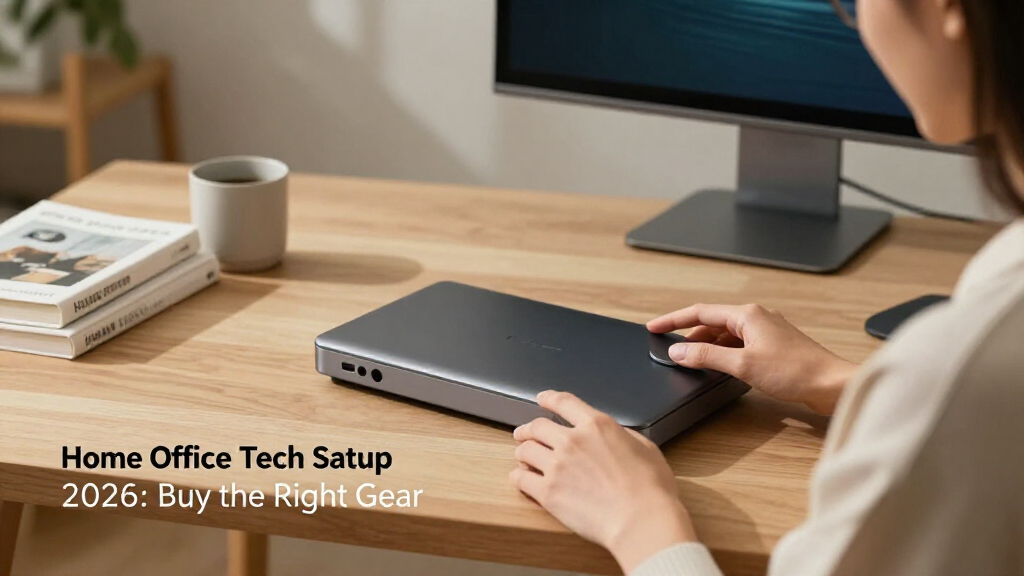

If 2026 is the year you finally build the home office of your dreams, this checklist is for you. Whether you’re a full-time remote worker, a hybrid professional carving out a dedicated corner, or a freelancer upgrading from the kitchen table, the right tech setup can transform both your comfort and your productivity. We’ve distilled the overwhelming world of office gear down to six essential categories, each with a concrete pick you can act on today.

Get the latest gadgets delivered free with Prime
- Fast, free delivery on millions of items
- Prime Video, Amazon Music and more included
- Member-only deals all year
This checklist is organized from the ground up: we start with the foundation of physical comfort — your chair — then move through input devices, desk ergonomics, audio, connectivity, and finally the often-overlooked finishing touches like cable management. Each section explains why that piece of gear matters, the mistakes shoppers commonly make, and exactly what to look for before you click buy.
To use this checklist effectively, treat it as a prioritized shopping list rather than a one-time purchase plan. Read each section’s “look for” bullets before comparing alternatives, and use the best-for and not-ideal notes to confirm the featured pick actually fits your body, your desk, and your workflow. Your spine, your ears, and your future self will thank you.
Ergonomic Office Chair
Your chair is the single most important purchase in any home office, because it’s the one piece of equipment your body interacts with for eight or more hours a day. A poor chair quietly contributes to back pain, poor posture, and the afternoon fatigue that no amount of coffee fixes. Investing properly here pays dividends across everything else you do.
The most common buying mistake is prioritizing looks or a soft, plush feel over genuine adjustability. A chair that looks great but offers no lumbar support adjustment or seat-depth control will let you down within months. Another frequent error is ignoring weight and height compatibility — taller users especially need a higher backrest and adjustable headrest to actually benefit from ergonomic claims.
The ELABEST X100 Ergonomic Mesh Office Chair with Footrest and 5D flip-up arm covers the fundamentals that matter most: breathable mesh for long sessions, highly adjustable arms that flip up when you need to slide under the desk, and a built-in footrest for reclined breaks. Before buying any chair, measure your desk height to ensure the armrests clear it, and confirm the seat height range suits your leg length so your feet rest flat on the floor or footrest.
What to look for:
- Adjustable lumbar support that moves both up and down, and ideally in and out
- 5D or 4D armrests with flip-up capability for under-desk clearance
- Breathable mesh backrest with a recline range of at least 90 to 130 degrees
- Seat-height range that fits your desk height and leg length
- A weight capacity and backrest height appropriate for your body frame
ELABEST X100 Ergonomic Mesh Office Chair with Footrest, 5D Flip-Up Arms, Adjusta

The ELABEST X100 is an ergonomic mesh office chair built for all-day comfort, featuring dynamic 3D lumbar support with spring-loaded auto-tracking, 5D flip-up armrests, an adjustable headrest, and an 18-inch extendable footrest. It supports up to 300 lbs with a BIFMA-certified structure and offers a 3-stage reclining mechanism, ventilated Dual-Stripe AirMesh backrest, and 17-point micro-adjustment
Pros:
- Highly adjustable with 3D lumbar support and 5D flip-up armrests
- Built-in extendable footrest for relaxation and reclining
- Breathable Dual-Stripe AirMesh backrest for better airflow
- Heavy-duty BIFMA-certified build supporting up to 300 lbs
Cons:
- Premium feature set may be more complex to adjust than basic chairs
- Best suited for hard floors per surface recommendation
Best for: Long daily work sessions where adjustability and airflow matter most
Not ideal for: Buyers wanting a plush, fabric-executive aesthetic over mesh
Bottom line: Get the chair right first — every other upgrade on this list works better when your body is properly supported.
Mechanical Keyboard
A mechanical keyboard is one of those upgrades that seems indulgent until you use one — then it becomes non-negotiable. Tactile feedback reduces typing fatigue, improves accuracy, and makes long writing sessions noticeably more pleasant. If your work involves significant typing, this is the input device that touches every minute of your day.
The biggest mistake shoppers make is choosing switch types blindly. Tactile switches like those in our pick offer a bump you can feel without the loud click of blue-style switches, making them a smart middle ground for shared households or video calls. Another common error is buying a wired-only board when a wireless model adds flexibility for hot-desking or moving between rooms.
The Logitech MX Mechanical Wireless Illuminated Keyboard in Tactile offers that balanced switch feel plus wireless freedom and backlit keys for dim environments. Consider layout compatibility carefully: confirm the key layout matches your region, and think about whether you want a compact tenkeyless form factor for more mouse room or a full-size layout for number-heavy work. Illumination is genuinely useful if you often work early mornings or late evenings.
What to look for:
- Tactile or linear switches suited to your noise tolerance and typing style
- Wireless connectivity with reliable multi-device pairing
- Backlit keys with adjustable brightness levels
- Battery life that comfortably spans a full work week
- Build quality with a stable, minimal-flex deck
Logitech MX Mechanical Wireless Illuminated Keyboard – Tactile (Graphite)
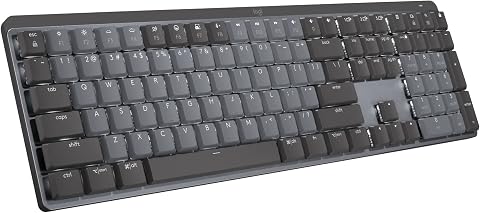
The Logitech MX Mechanical is a full‑size, low‑profile wireless keyboard featuring quiet tactile mechanical switches that provide precise feedback with reduced noise. It offers smart backlighting that activates when your hands approach and can connect to up to three devices via Bluetooth or the Logi Bolt receiver, with USB‑C quick charging lasting up to 15 days (or 10 months with lighting off).
Pros:
- Quiet tactile switches give satisfying feedback without disturbing others.
- Smart illumination and multi‑device support boost productivity across platforms.
Cons:
- Battery life is reduced when the backlighting is continuously used.
Best for: Heavy typists who want tactile feedback without loud clicking
Not ideal for: Users who need a dedicated number pad at all times
Bottom line: A quality mechanical keyboard makes every workday task feel better; the MX Mechanical’s tactile switches hit the sweet spot.
Vertical Monitor Stand
Sitting all day is the quiet health risk of remote work, and a sit-stand solution is the most practical way to break up static posture. The beauty of a desk converter is that it sits on top of your existing desk — no disassembly, no new furniture — letting you alternate between seated and standing positions throughout the day without a full standing-desk renovation.
The most common mistake is buying a converter that’s too small for your monitor setup, leaving you hunching at a keyboard perched at the wrong height. Always check the work surface dimensions against your monitor and keyboard footprint before purchasing. Another frequent error is choosing manual crank models when a motorized version removes the friction that stops people from actually switching positions.
The FLEXISPOT 32-Inch Motorized Standing Desk Converter handles the transition electrically at the touch of a button, which matters more than you’d think — the easier it is to change position, the more often you will. Proper ergonomics when standing mean your elbows at roughly 90 degrees and the top of your monitor at or slightly below eye level. Measure your desk depth first to confirm the converter’s base fits without crowding your workspace.
What to look for:
- Electric, motorized height adjustment with smooth, stable lifting
- Surface width that fits your monitor plus keyboard and mouse
- Weight capacity well above your monitor’s actual weight
- A height range accommodating both your seated and standing elbow positions
- Cable routing or power cable length that allows full extension
FLEXISPOT 32-Inch Motorized Standing Desk Converter, Electric Sit-to-Stand Riser

This adjustable standing desk converter features a smooth, quiet electric lift with a wide work surface and keyboard tray, supporting up to 55 lbs. It is easy to set up, stable, and promotes ergonomic posture for comfortable working at home or in the office.
Pros:
- Smooth and quiet electric height adjustment
- Easy setup with minimal assembly required
- Large, spacious work surface suitable for dual monitors and laptops
- Stable and sturdy construction supporting up to 55 lbs
Cons:
- Limited height adjustment range for very tall users
- Weight capacity may be insufficient for heavy equipment
- No built-in cable management features
Best for: Remote workers wanting standing breaks on an existing desk
Not ideal for: Very shallow desks where a converter’s base won’t fit
Bottom line: Motorized convenience makes alternating posture effortless — and effortlessness is what makes it stick.
Noise-Cancelling Headphones
Home offices come with unpredictable soundscapes: family members, pets, neighbors, and delivery trucks all conspire against your concentration. A good pair of noise-cancelling headphones creates a portable focus bubble that no other gear on this list can replicate, and they double as your meeting audio companion throughout the workday.
The biggest buying mistake is treating noise cancellation as the only criterion. Comfort over long wear sessions matters just as much — clamping force, earcup size, and weight determine whether you’ll actually keep them on through a full afternoon of deep work. Another common error is ignoring microphone quality, which is essential if your headphones pull double duty for video calls and meetings.
The Bose QuietComfort Wireless Noise-Cancelling Headphones in Twilight Blue come from a lineage famous for exactly this balance of cancellation and long-wear comfort. Consider whether over-ear or in-ear suits your preferences — over-ear models generally win for all-day wear — and check battery life against your longest workdays. Multipoint Bluetooth pairing is worth having if you juggle between a laptop and phone for calls.
What to look for:
- Industry-leading active noise cancellation for constant background sounds
- Comfortable over-ear design suitable for all-day wear
- A clear beamforming microphone for calls in noisy spaces
- Battery life covering a full workday plus commute-length buffer
- Multipoint pairing to switch between laptop and phone seamlessly
Bose QuietComfort Wireless Noise-Cancelling Headphones, Twilight Blue

These over-ear Bluetooth headphones combine active noise cancellation with Quiet and Aware listening modes, adjustable EQ, and high-fidelity audio. They offer up to 24 hours of battery life, USB-C quick charging, multipoint Bluetooth, and an included wired audio option with an inline microphone.
Pros:
- Active noise cancellation with Quiet and Aware modes
- Up to 24 hours of battery life and quick charging
- Comfortable padded over-ear design
- Bluetooth multipoint and wired listening options
Cons:
- Wired listening requires the included audio cable
- Some features and software updates rely on the Bose app
Best for: Deep-work sessions and call-heavy days in busy households
Not ideal for: Those who strongly prefer lightweight in-ear earbuds
Bottom line: QuietComfort headphones deliver the focus bubble that turns a chaotic house into a productive office.
Docking Station
If your laptop is your workhorse, a docking station is the upgrade that makes your entire desk feel permanent. One cable connects power, monitors, peripherals, and networking — transforming a portable machine into a full multi-monitor battle station in a single motion each morning. It’s the difference between plugging in five cables and plugging in one.
The most common mistake is buying a dock with the wrong interface for your laptop. Check whether your machine supports Thunderbolt, and at which version, because a Thunderbolt 5 dock like our pick is built for modern, high-bandwidth setups. Another frequent error is under-counting ports: tally your actual needs — monitors, USB-A devices, Ethernet, SD cards — before choosing, and leave headroom for future gear.
The Anker Prime TB5 Docking Station’s 14-in-1 Thunderbolt 5 design provides generous expansion for demanding setups, including multi-monitor workflows and fast peripheral charging. Verify your laptop’s Thunderbolt compatibility and charging wattage requirements before purchasing so the dock can power your machine as well as connect it. Position the dock within cable reach of where your laptop actually lands each day.
What to look for:
- Thunderbolt compatibility matching your laptop’s ports and version
- Enough display outputs for your multi-monitor ambitions
- Sufficient power delivery to charge your laptop through the dock
- A mix of USB-C and USB-A ports for older and newer peripherals
- Gigabit Ethernet for stable, fast wired networking
Anker Prime TB5 Docking Station, 14-in-1 Thunderbolt 5 Dock for Laptops
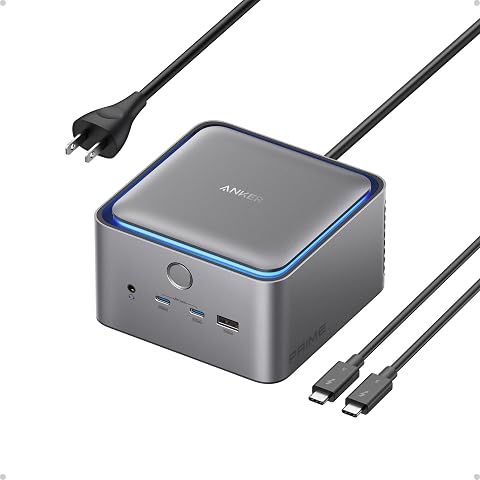
The Anker Prime TB5 Docking Station offers 14 ports including Thunderbolt 5, USB-C, USB-A, SD/TF card readers, Ethernet, audio, and HDMI 2.1 or DisplayPort 2.1. It supports up to 8K video output, fast file transfer, and delivers up to 140W power for multiple devices, making it ideal for high-performance laptop setups.
Pros:
- Supports high-resolution 8K video output
- Multiple ports for versatile connectivity
- Fast data transfer speeds with Thunderbolt 5
- Efficient power delivery for multiple devices
Cons:
- Premium price may be high for some users
- Complex setup for non-technical users
Best for: Laptop users running multi-monitor desks with lots of peripherals
Not ideal for: Desktop PC owners or laptops lacking Thunderbolt support
Bottom line: The right dock collapses your entire desk setup into a single daily connection — the ultimate convenience upgrade.
Desk Cable Organizer
Cable management is the least glamorous item on this list and the one that most improves how your workspace feels. Tangled wires collect dust, complicate cleaning, and create visual clutter that subtly undermines the calm, focused atmosphere a home office should have. This is the finishing touch that makes every other upgrade look intentional.
The main mistake is treating cable management as an afterthought, buying a few random clips that fail within weeks. A proper kit — like the Steelcase Universal Cable Management Kit in Large — provides matched components designed to work together: trays, ties, channels, and mounts that route everything off your desktop and out of sight. Another common error is buying undersized solutions; measure your cable bundle thickness before choosing a kit size.
Installation is simpler than most people expect, and doing it alongside your dock and standing desk converter setup makes sense — you’ll be managing those cables anyway. Plan your routes before adhering anything: group cables by destination (power, monitors, peripherals), leave slack for the standing converter’s full height range, and keep frequently unplugged cables accessible rather than hidden.
What to look for:
- A complete kit with trays, ties, and mounts for under-desk routing
- Adhesive and clamp options compatible with your desk material
- Capacity sized to your actual cable bundle thickness
- Channels or sleeves that conceal cables without blocking access
- Components sturdy enough to last years, not weeks
Steelcase Universal Cable Management Kit for Office Desk, Large
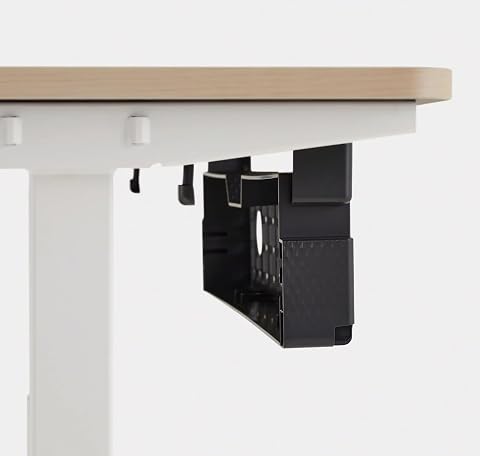
This cable management kit mounts beneath your desk, providing easy access to cords with a hinged design. It features secure outlets, smart straps for cable organization, and is expandable with additional power outlets, helping to keep your workspace tidy and efficient.
Pros:
- Easy access to cords with hinged design
- Secure outlet mounting and cable organization
- Expandable with additional power outlets
Cons:
- Powerstrip Plus not included
- Limited details on materials and build quality
Best for: Anyone finishing a setup and wanting a clean, calm workspace
Not ideal for: Glass desks where standard adhesive mounts may not hold
Bottom line: Ten dollars’ worth of discipline in cable routing makes your entire setup look twice as considered.
If you’re building this setup on a staggered budget, follow this buying order: chair first, then dock or monitor stand depending on whether comfort or connectivity is your bigger daily pain point, followed by headphones, keyboard, and finally cable management once everything else is in place. The chair delivers the longest-term health payoff, while the cable kit naturally comes last since it organizes gear you don’t own yet. There’s no shame in spreading purchases across several months.
The best home office isn’t built in one shopping spree — it’s assembled thoughtfully, piece by piece, around how you actually work. Use this checklist as your roadmap, verify compatibility at every step, and enjoy the process. Here’s to a 2026 filled with comfortable, focused, productive workdays in a space you genuinely love sitting down in — and standing up from.
Halloween Picks
halloween
As an affiliate, we earn on qualifying purchases.