
To avoid the “Why Won’t It Weed?” nightmare, make certain your design file is properly prepared by using clean, vector lines with no overlapping or unnecessary paths. Simplify intricate designs and avoid tiny details that can tear during weeding. Adjust your cut settings based on your material, perform test cuts on scrap pieces, and verify your blade depth and pressure. Properly prepared files and machine settings lead to cleaner cuts and easier weeding—keep exploring for tips to perfect your process.
Key Takeaways
- Choose the correct material type and thickness suited for your design to ensure clean cuts and easy weeding.
- Test cut small scraps to fine-tune pressure, blade depth, and speed before working on your main project.
- Maintain and properly calibrate your blade for sharpness and accurate depth to prevent tearing or incomplete cuts.
- Use manufacturer-recommended settings for each material, adjusting as needed based on test results.
- Prepare and optimize your design files by removing unnecessary details and ensuring proper cut lines for easier weeding.

Preparing your file correctly is essential for a smooth cutting process. One of the first steps is paying close attention to your material selection. Not all materials are created equal, and choosing the right one can make or break your project. For example, if you’re working with intricate designs, thinner or more flexible materials like vinyl or adhesive-backed sheets are easier to cut and weed. Thicker materials, such as cardstock or chipboard, require different settings and blades. Knowing your material’s properties helps you set your machine accurately, minimizing the risk of incomplete cuts or tears during weeding. Always double-check the manufacturer’s recommendations for the best settings and compatibility. Proper material selection ensures your design transfers cleanly from the backing, saving you time and frustration. Additionally, understanding the material properties can help you troubleshoot issues before they occur.
Another crucial aspect of preparing your file involves blade maintenance. Your cutting blade is the tool that translates your digital design into physical form, so keeping it in top condition is vital. Over time, blades can become dull or gunked up with adhesive residue, which hampers their ability to cut sharply and cleanly. Regularly inspect your blade before each session; if you notice it’s dull or the cut edges are jagged, it’s time to replace or sharpen it. Proper blade maintenance not only results in cleaner cuts but also extends the lifespan of your tools. Clean your blade with a soft cloth or a blade cleaning tool to remove any buildup, and ensure it’s securely seated in your machine. If your machine allows, calibrate the blade depth carefully—too shallow, and it won’t cut through; too deep, and it might perforate or damage your material. Maintaining your blade regularly is a simple yet effective way to prevent common issues like tearing or incomplete cuts that often lead to the dreaded “Why won’t it weed?” nightmare.
In addition to selecting the right material and maintaining your blade, pay attention to your cutting settings. Use the recommended pressure, speed, and blade depth for your specific material. Testing on a small scrap piece before starting your main cut can save you hours of frustration later. Proper file preparation involves not just the design itself but also configuring your equipment and tools correctly. When your material choice aligns with your project needs and your blade stays sharp and clean, you’re setting yourself up for success. These steps help ensure the cut lines are precise, the weed areas are clean, and you avoid the common pitfalls that cause designs to tear or stick together. Ultimately, taking the time for thorough material selection and diligent blade maintenance makes your cutting experience smoother, more enjoyable, and far less prone to that dreaded “Why won’t it weed?” moment.

Cricut Replacement Cutting Blades for Cutting Machines
- Compatible with all Cricut paper-cutting machines: Cutting blades for Cricut machines
- Durable, precision-engineered blades: Sharp, accurate cuts
- Includes 2 replacement blades per package: Package contains 2 blades
As an affiliate, we earn on qualifying purchases.
As an affiliate, we earn on qualifying purchases.
Frequently Asked Questions
How Do I Fix Stubborn Parts That Won’T Come off Easily?
To fix stubborn parts that won’t come off easily, gently use a weeding tool or tweezers to lift the stubborn edges first. If adhesive residue remains, dampen a cloth with a bit of rubbing alcohol and carefully rub the area. This loosens the residue and helps release the stubborn parts more easily. Be patient, work slowly, and avoid ripping the design to prevent damage.
What Types of Files Are Best for Detailed Designs?
Did you know that 85% of professional designers prefer vector graphics for detailed designs? For intricate cuts, use vector files like SVG, AI, or EPS, as they offer clean, scalable lines perfect for precision. High-resolution images can work, but vectors guarantee your details stay sharp and clear without pixelation. So, choose vector graphics for the best results on detailed designs, making your cutting process smooth and accurate.
How Can I Tell if My File Is Optimized for Cutting?
You can tell if your file is optimized for cutting by checking its file format and design complexity. Make certain your design is in a compatible format like SVG or DXF, which are ideal for precise cuts. Simplify complex designs with fewer details and overlapping lines, as overly intricate files can cause issues. If your design cuts smoothly without extra fuss or tearing, it’s a good sign your file is well-optimized for cutting.
Why Does My Design Cut Unevenly or With Incomplete Lines?
When your design cuts unevenly or with incomplete lines, it’s like hitting a snag in the process. Double-check your material selection, ensuring it’s compatible with your blade type and settings. Also, calibrate your blade properly; a dull or misaligned blade can cause inconsistent cuts. Adjust your blade depth and pressure accordingly. Proper preparation and calibration make all the difference between a smooth cut and a frustrating mess.
Should I Convert My Files to a Specific Format Before Cutting?
You should convert your files to compatible formats like SVG or PNG before cutting, as most cutters work best with these. Use conversion tips such as ensuring your design is vector-based for clean cuts, and avoid unnecessary layers or complex details. Saving in the right file format prevents issues like uneven cuts or incomplete lines, making your workflow smoother and saving you time troubleshooting later.

Haosie Vinyl Cutter Blades, 15pcs (30/45/60°) Cutting Knife Plotter Tools
- High-Quality Tungsten Steel Blades: Made of durable tungsten carbide with spring support
- Versatile Cutting Tool: Suitable for vinyl, adhesive media, and polishing wood
- Professional Grade Performance: Includes bracket for optimal carving precision
As an affiliate, we earn on qualifying purchases.
As an affiliate, we earn on qualifying purchases.
Conclusion
Proper file prep is your secret weapon against the dreaded “why won’t it weed?” nightmare. When you treat your material like a trusted tool, you set yourself up for smooth cuts and flawless results. Remember, good prep is the foundation—skip it, and you’re building on quicksand. Think of your file prep as planting seeds; with care today, you’ll harvest perfection tomorrow. Master this step, and your projects will flow effortlessly like a well-oiled machine.

Prime Vinyl Permanent Vinyl, Self Adhesive Vinyl for All Cutting Machines 12" x 12", 25 Sheets for Home Decor, Logo, Banners, Window Graphics, Cutting Machine
- Introduction – 12" x 12" – 25 pack…
- Features – Our permanent adhesive vinyl uses High-end…
- Quality Assurance – Our vinyl for all Cutting…
As an affiliate, we earn on qualifying purchases.
As an affiliate, we earn on qualifying purchases.
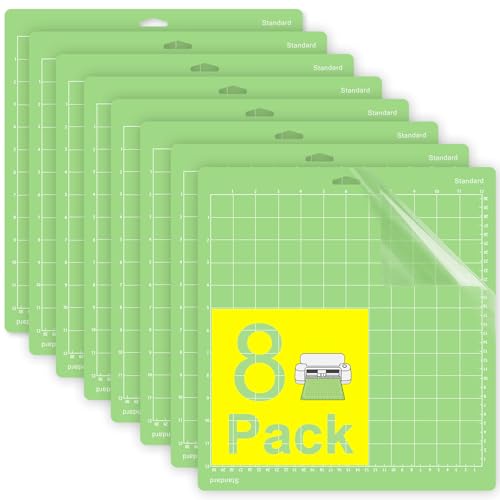
Gwybkq Cutting Mat 12"x12" Standard Grip 8 Pack, Compatible with Cricut Maker 4/Explore Air/One, Non-Slip Durable Adhesive Mats, Replacement Cutting Accessories for Die-Cutting, Quilting & Crafts
- Standard Grip for Medium Materials: Ideal for vinyl, cardstock, and light fabrics
- Compatible with Cricut Machines: Fits Maker, Maker 4, Explore Air 2, and One
- Durable PVC with Strong Adhesive: Securely holds materials for repeated use
As an affiliate, we earn on qualifying purchases.
As an affiliate, we earn on qualifying purchases.