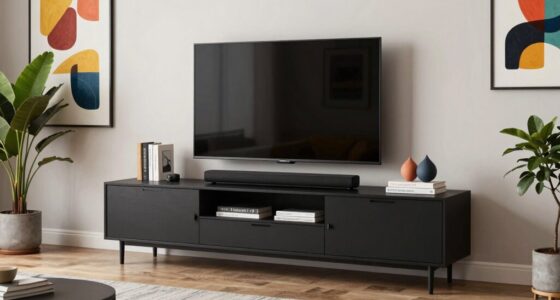
To achieve gallery-grade digital art display on your TV, calibrate your settings carefully. Adjust color for accuracy and vibrancy, ensuring it closely matches the artist’s intent. Set resolution to native for sharp details, and tweak contrast and brightness to add depth while preserving shadow and highlight details. Fine-tuning gamma ensures subtle nuances come through clearly. By optimizing these parameters, you’ll transform your space into a stunning art showcase—keep exploring for more expert tips.

Get the latest gadgets delivered free with Prime
- Fast, free delivery on millions of items
- Prime Video, Amazon Music and more included
- Member-only deals all year
Key Takeaways
- Calibrate colors for accurate, vivid tones that faithfully represent the original artwork.
- Set a high native resolution (4K or higher) to enhance fine details and textures.
- Adjust contrast and brightness to define depth and preserve shadow and highlight details.
- Fine-tune gamma settings to ensure subtle nuances and balanced luminance across the display.
- Combine color, resolution, contrast, brightness, and gamma adjustments for a gallery-quality viewing experience.
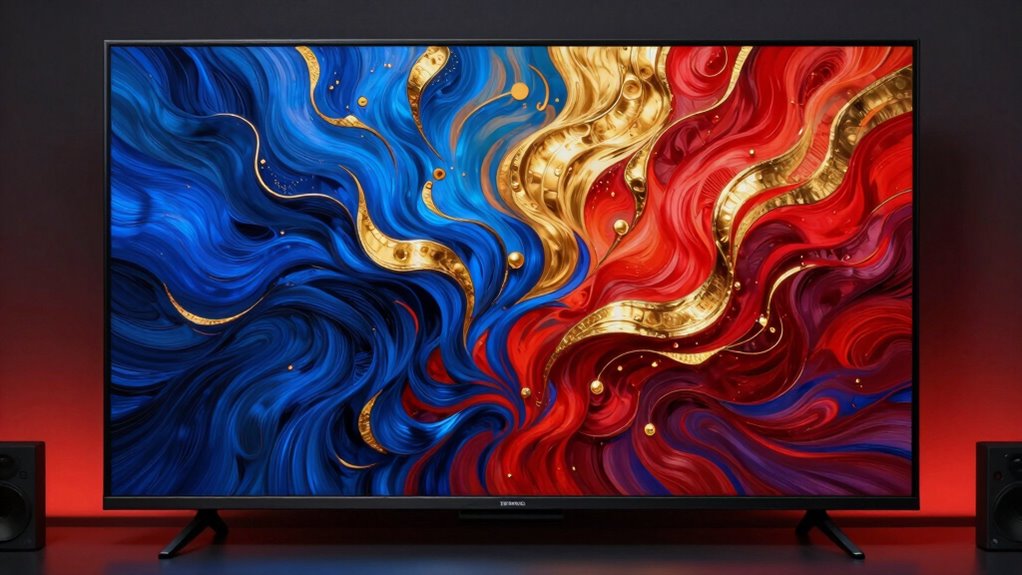
Adjusting your Art TV settings can dramatically enhance your viewing experience, revealing the true depth and detail of each artwork or visual display. When you fine-tune aspects like color calibration and screen resolution, you activate the TV’s full potential to showcase digital art as if it were hanging in a gallery. Proper color calibration ensures that the colors you see on your screen are accurate and vivid, faithfully representing the artist’s original vision. This process involves adjusting the display’s color settings—such as hue, saturation, and brightness—so that skin tones, shadows, and highlights appear natural and true to life. When done correctly, color calibration minimizes color distortions or oversaturation, giving your art a more authentic and immersive look. Additionally, calibrating your display with professional tools can further perfect your setup for optimal viewing.
Screen resolution is equally essential in creating a gallery-grade display. Higher resolutions, such as 4K or even 8K, provide sharper details and crisper images, allowing you to appreciate the fine brushstrokes or intricate textures in digital artwork. Confirming your TV is set to its native resolution prevents blurriness or pixelation, which can diminish the quality of the visual presentation. When your display’s resolution matches the source content, you get the clearest, most detailed image possible, making every artwork pop with clarity and depth.
Beyond color calibration and resolution, you should also consider adjusting contrast and brightness to enhance the overall visual impact. A well-calibrated contrast setting helps define the difference between dark and light areas, adding depth and dimension to the artwork. Brightness adjustments ensure that the details in shadows or highlights aren’t lost, preserving the subtle nuances in each piece. These settings work together to produce a balanced, true-to-life display that elevates your digital art collection.
Finally, don’t forget to tweak the gamma settings if your TV allows it. Proper gamma adjustment helps maintain consistent brightness levels across different parts of the image, ensuring that shadows aren’t too dark or highlights overly bright. When all these elements—color calibration, resolution, contrast, brightness, and gamma—are optimized, your Art TV can deliver a viewing experience that rivals a gallery display, where every detail and hue is preserved with precision. With just a few thoughtful adjustments, you’ll transform your living space into a personal art gallery, where digital artworks are showcased in their full glory.
As an affiliate, we earn on qualifying purchases.
Frequently Asked Questions
How Do I Calibrate My Art TV for Optimal Color Accuracy?
To calibrate your art TV for ideal color accuracy, start with a display calibration tool or software designed for color calibration. Follow the on-screen instructions to adjust brightness, contrast, and color settings. Focus on achieving true-to-life colors by fine-tuning RGB levels. Regularly perform color calibration to maintain accuracy, especially if your environment changes. This guarantees your digital art looks vibrant and gallery-quality every time you view it.
What Is the Best Resolution for Displaying Digital Art?
Imagine your digital art as a vibrant window into your imagination. The best resolution depends on your display size; for larger screens, aim for 4K or higher to maintain sharp detail. Use resolution tips like matching your monitor’s native resolution and ensuring your graphics card supports it. This way, your art looks crisp and immersive, no matter the size, making every pixel a perfect reflection of your creativity.
Can I Customize Picture Settings for Different Art Styles?
Yes, you can customize picture settings for different art styles. Use art style adjustments to enhance specific features, like brightness or contrast, to suit each piece. Additionally, color profile customization allows you to fine-tune colors for accurate representation or creative effects. By adjusting these settings, you guarantee each artwork looks its best, whether you’re emphasizing vivid colors or subtle tones, creating a gallery-grade display tailored to your preferences.
How Does Ambient Lighting Affect Digital Art Display Quality?
Ambient lighting transforms your viewing environment, casting shadows or highlighting details that can make digital art pop or fade. Too much ambient light washes out colors, dulling the image’s vibrancy, while dim, controlled lighting enhances contrast and depth. To achieve gallery-grade display quality, keep ambient light soft and indirect, reducing glare and reflections. This creates a balanced environment where your digital art shines with clarity and true-to-life colors.
Are There Specific Screen Protectors That Enhance Image Clarity?
Yes, certain screen protectors can enhance image clarity. Look for tempered glass or anti-reflective protectors designed specifically for digital displays; these reduce glare and fingerprints while maintaining sharpness. Make sure the protector has high transparency ratings and minimal coating thickness. By choosing a quality screen protector, you’ll preserve the vibrant details of your digital art and enjoy a clearer, more immersive viewing experience.
professional color calibration device for TV
As an affiliate, we earn on qualifying purchases.
As an affiliate, we earn on qualifying purchases.
Conclusion
By tweaking your Art TV settings, you can transform your digital art into gallery-quality masterpieces right at home. Did you know that viewers spend up to 60% more time appreciating artwork that’s displayed with optimized settings? So don’t settle for dull images—adjust your contrast, color, and sharpness to truly bring your digital creations to life. With the right setup, your TV can become a stunning showcase that impresses everyone who sees it.
high resolution 8K TV for digital art
As an affiliate, we earn on qualifying purchases.
As an affiliate, we earn on qualifying purchases.
TV contrast and brightness calibration
As an affiliate, we earn on qualifying purchases.
As an affiliate, we earn on qualifying purchases.
Halloween Picks
halloween
As an affiliate, we earn on qualifying purchases.