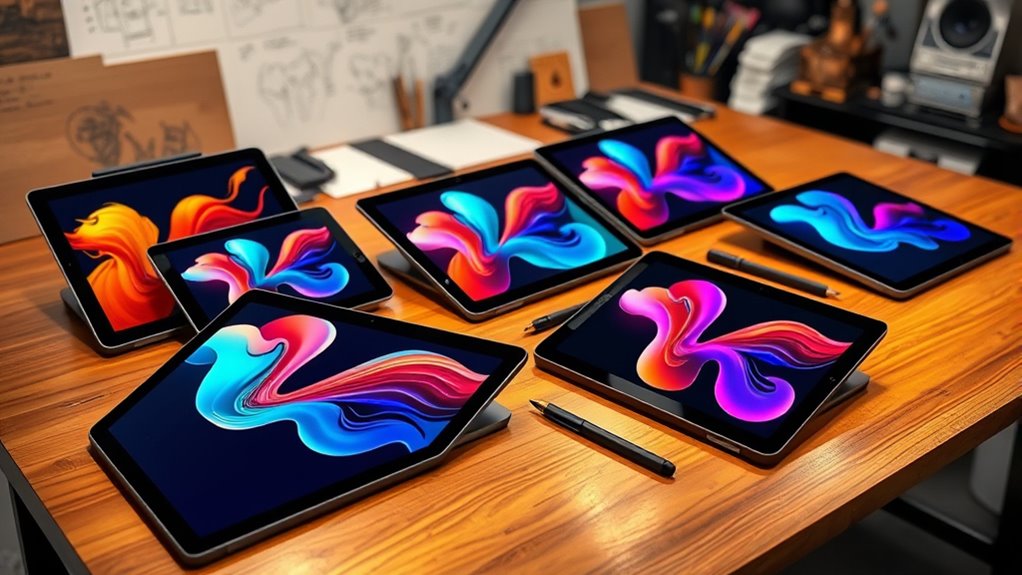

For professional artists who want a high-end drawing tablet, the Wacom Cintiq Pro 22 is my best overall pick for its 4K, 120 Hz touchscreen and Pro Pen 3, while the XPPen Artist Pro 27 (Gen 2) stands out for a larger 4K, 120 Hz drawing surface. The Wacom Intuos Pro Medium is a strong alternative for artists who prefer a compact, screenless tool and an existing monitor. The main tradeoff is whether to prioritize a built-in display, a bigger workspace, portability, or a lower-cost setup. Read on for how all 15 options compare and which one fits your studio or workflow.

Get the latest gadgets delivered free with Prime
- Fast, free delivery on millions of items
- Prime Video, Amazon Music and more included
- Member-only deals all year
Complete the kit



Key Takeaways
- Screen size and resolution are separate choices: the 27-inch Artist Pro 27 offers more drawing area, while the 22-inch Cintiq Pro 22 pairs a smaller workspace with 4K resolution and a 120 Hz display.
- Screenless tablets still make sense in a professional setup: the Wacom Intuos Pro Medium avoids a built-in display and is a compact choice for artists comfortable drawing while looking at a separate monitor.
- Mid-size pen displays can be easier to place than flagship screens: the 16- and 19-inch options provide a built-in canvas without taking up as much desk space as the 22- to 27-inch models.
- Standalone tablets serve a different workflow: the XP-Pen Magic Drawing Pad and Wacom MovinkPad Pro 14 work without a computer, but are not direct substitutes for larger desktop-connected displays.
- Some listed models are not professional-first picks: the Callsky-Kids Cpad 12 Pro is positioned for children, while the smallest Artist models favor portability over expansive studio work.
| Wacom Intuos Pro Medium Bluetooth Graphic Drawing Tablet with Pro Pen 3 |  | Best for Screenless Professional Workflows | Active area: 11.4 × 8.1 in (291 × 206 mm) | Pen pressure: 8192 levels | Tilt support: Yes | VIEW ON AMAZON | See Our Full Breakdown |
| XPPen Artist Pro 19 Gen2 4K UHD Drawing Tablet with 18.4-inch Screen |  | Best Large 4K Color-Work Display | Screen size: 18.4 in | Resolution: 3840 × 2160 (4K UHD) | Color gamut: 99.8% sRGB, 96% Adobe RGB, 98% Display P3 | VIEW ON AMAZON | See Our Full Breakdown |
| XPPen Artist 12 3rd 11.9-inch Drawing Tablet with Screen Pink, 16K Stylus, X4 |  | Best Compact Display for Illustration | Screen size: 11.9 in | Stylus pressure: 16,384 levels | Tilt recognition: ±60° | VIEW ON AMAZON | See Our Full Breakdown |
| Wacom Cintiq 16 Drawing Tablet with QHD Screen and Pro Pen 3 |  | Best Wacom Display for a Focused Desk Setup | Display size: 16 in | Display type: IPS | Resolution: 2560 × 1600 (WQXGA) | VIEW ON AMAZON | See Our Full Breakdown |
| XPPen Artist Ultra 16 4K OLED Touchscreen Drawing Display |  | Best Premium OLED and Touch Display | Display: 15.6-inch 4K OLED | Resolution: 3840 × 2160 | Contrast ratio: 100,000:1 | VIEW ON AMAZON | See Our Full Breakdown |
| Wacom Cintiq Pro 22 4K Drawing Tablet with 120 Hz Touchscreen and Pro Pen 3 |  | Best for Color-Critical, High-Refresh Studio Work | Display: 22-inch 4K UHD (3840 × 2160) | Refresh rate: 120 Hz | Touchscreen: 10-point multi-touch | VIEW ON AMAZON | See Our Full Breakdown |
| XP-Pen Magic Drawing Pad 12.2-Inch Standalone Drawing Tablet, 8GB RAM, 256GB Storage |  | Best Standalone Option for Mobile Sketching | Screen: 12.2 inches; 2160 × 1440; 3:2 aspect ratio | Color gamut: 97% sRGB | Operating system: Android 14 | VIEW ON AMAZON | See Our Full Breakdown |
| XP-Pen Artist 24 Pro 23.8-Inch QHD Drawing Display |  | Best for Shortcut-Heavy QHD Workflows | Display: 23.8-inch IPS; 2560 × 1440 (QHD) | Color gamut: 118% sRGB; 84% NTSC; 90% Adobe RGB | Contrast ratio: 1000:1 | VIEW ON AMAZON | See Our Full Breakdown |
| XPPen Artist Pro 27 (Gen 2) 4K 120Hz Drawing Tablet with Screen |  | Best Premium Large-Canvas Display | Display: 27 inches; 3840 × 2160 (4K) | Refresh rate: 120 Hz | Color: 99% Adobe RGB; ΔE<1; Calman certified | VIEW ON AMAZON | See Our Full Breakdown |
| XP-Pen Artist 13.3 Pro V2 Drawing Tablet with Screen |  | Best Compact Pen Display for a Secondary Workspace | Display: 13.3-inch Full HD IPS | Screen finish: Fully laminated with anti-glare film | Stylus: Battery-free X3 Pro smart chip stylus; 16,384 pressure levels | VIEW ON AMAZON | See Our Full Breakdown |
| XP-Pen Artist Pro 22 Gen 2 21.5-Inch 2.5K Drawing Display |  | Best Large-Format Workstation Display | Display: 21.5-inch, 2560 × 1440 | Pixel density: 137 PPI | Color coverage: 99% Adobe RGB, 99% sRGB, 94% Display P3 | VIEW ON AMAZON | See Our Full Breakdown |
| XPPen Artist Pro 16 Gen 2 2.5K Drawing Tablet with Screen |  | Best Portable Pen Display for Computer-Based Work | Screen: 16 inches, 2560 × 1600 | Aspect ratio: 16:10 | Pressure levels: 16,384 | VIEW ON AMAZON | See Our Full Breakdown |
| Wacom MovinkPad Pro 14 Android Tablet with OLED Display and Pro Pen 3 |  | Best Standalone Tablet for Mobile Professionals | Operating system: Android 15 | Processor: Snapdragon 8s Gen 3 | Memory: 12 GB RAM | VIEW ON AMAZON | See Our Full Breakdown |
| XP-Pen Artist 15.6 Pro V2 Drawing Tablet with Screen |  | Best for Shortcut-Driven Desktop Work | Screen size: 15.4 inches | Stylus pressure: 16,384 levels | Color gamut: 99% sRGB, 96% Adobe RGB, 96% Display P3 | VIEW ON AMAZON | See Our Full Breakdown |
| Callsky-Kids Cpad 12 Pro Standalone Drawing Tablet, 12-Inch |  | Best Entry-Level Standalone Option | Display: 12-inch IPS, 2000 × 1200 | Operating system: Android 15 | Memory: 16 GB stated: 8 GB physical plus 8 GB virtual | VIEW ON AMAZON | See Our Full Breakdown |
| high end drawing tablet for professional artist | Color gamut | Display |
|---|---|---|
| Wacom Intuos Pro Medium Blueto | — | — |
| XPPen Artist Pro 19 Gen2 4K UH | 99.8% sRGB, 96% Adobe RGB, 98% Display P3 | — |
| XPPen Artist 12 3rd 11.9-inch | 99% sRGB | — |
| Wacom Cintiq 16 Drawing Tablet | — | — |
| XPPen Artist Ultra 16 4K OLED | 99% Adobe RGB, 99% sRGB, 98% Display P3 | 15.6-inch 4K OLED |
| Wacom Cintiq Pro 22 4K Drawing | — | 22-inch 4K UHD (3840 × 2160) |
| XP-Pen Magic Drawing Pad 12.2- | 97% sRGB | — |
| XP-Pen Artist 24 Pro 23.8-Inch | 118% sRGB; 84% NTSC; 90% Adobe RGB | 23.8-inch IPS; 2560 × 1440 (QHD) |
| XPPen Artist Pro 27 | — | 27 inches; 3840 × 2160 (4K) |
| XP-Pen Artist 13.3 Pro V2 Draw | 125% sRGB; 107% Adobe RGB; 95% Display P3 | 13.3-inch Full HD IPS |
| XP-Pen Artist Pro 22 Gen 2 21. | — | 21.5-inch, 2560 × 1440 |
| XPPen Artist Pro 16 Gen 2 2.5K | — | — |
| Wacom MovinkPad Pro 14 Android | — | 14-inch OLED, 2880 × 1800 |
| XP-Pen Artist 15.6 Pro V2 Draw | 99% sRGB, 96% Adobe RGB, 96% Display P3 | — |
| Callsky-Kids Cpad 12 Pro Stand | 100% sRGB | 12-inch IPS, 2000 × 1200 |
More Details on Our Top Picks
Wacom Intuos Pro Medium Bluetooth Graphic Drawing Tablet with Pro Pen 3
The Intuos Pro Medium suits artists who prefer drawing on a tablet while viewing their work on a separate monitor. Its Pro Pen 3 pressure and tilt support handle nuanced brushwork, while ten ExpressKeys and two mechanical dials put frequent commands close at hand. Compared with the display-based Wacom Cintiq 16, this model takes less desk space and adds Bluetooth, but it cannot show the canvas beneath the pen; artists who rely on direct hand-eye placement may prefer a screen model. The compact active area is practical for a portable workstation, though it offers less room for broad arm movements than the larger XPPen Artist Pro 19 Gen2. This is a focused professional tool, not an all-in-one display.
Pros:- Pro Pen 3 supports 8192 pressure levels and tilt for controlled line variation.
- Ten ExpressKeys and two mechanical dials support a customized shortcut workflow.
- Thin magnesium chassis combines a sturdy build with a portable profile.
- USB and Bluetooth connectivity offer wired and wireless setup options.
Cons:- No built-in display, so drawing requires hand-eye coordination with an external monitor.
- The 11.4 × 8.1-inch active area is smaller than the work surface on display tablets such as the XPPen Artist Pro 19 Gen2.
Best for: Professional illustrators and retouchers who already work at a monitor and want a portable, customizable pen tablet with wireless connectivity.
Not ideal for: Artists who need to draw directly on the image, or who want a large canvas area for expansive gestures.
- Active area:11.4 × 8.1 in (291 × 206 mm)
- Pen pressure:8192 levels
- Tilt support:Yes
- ExpressKeys:10 customizable keys
- Mechanical dials:2
- Thickness:4 mm
- Material:Magnesium
- Connectivity:USB and Bluetooth
Our verdict“Choose the Intuos Pro Medium if you want professional pen control and shortcuts in a compact screenless tablet, and skip it if drawing directly on a display is central to your workflow.”
XPPen Artist Pro 19 Gen2 4K UHD Drawing Tablet with 18.4-inch Screen
The Artist Pro 19 Gen2 stands out for professionals who want a generous, high-resolution canvas and broad color coverage without moving to a much larger display. Its 18.4-inch 4K laminated screen gives detailed artwork room to breathe, while the listed sRGB, Adobe RGB, and Display P3 coverage suits artists working across different color spaces. Two styluses offer a choice of grip, and the shortcut dial helps keep common adjustments within reach. Compared with the 16-inch XPPen Artist Ultra 16, this model provides more drawing room but not the Ultra’s OLED contrast or touch features. The tradeoff is a substantial desk footprint and a more involved setup than the screenless Wacom Intuos Pro Medium. VESA compatibility offers another way to manage its placement.
Pros:- 18.4-inch 4K laminated display provides detailed on-screen drawing space.
- Broad stated coverage across sRGB, Adobe RGB, and Display P3.
- Two stylus options accommodate different grips and drawing preferences.
- USB-C, HDMI, Bluetooth 5.0, and VESA compatibility allow flexible setup.
Cons:- Large screen requires more desk space than the Wacom Cintiq 16 or XPPen Artist Ultra 16.
- It is a computer-connected display, not a standalone drawing tablet.
- The range of features and connection options may take time to configure.
Best for: Professional illustrators, animation artists, and color-focused designers who want a large 4K pen display for a fixed workstation.
Not ideal for: Artists with limited desk space, or buyers seeking a lightweight tablet they can use without a computer.
- Screen size:18.4 in
- Resolution:3840 × 2160 (4K UHD)
- Color gamut:99.8% sRGB, 96% Adobe RGB, 98% Display P3
- Colors supported:1.07 billion
- Pen pressure:16,384 levels
- Tilt support:60°
- Styluses:X3 Pro Roller and X3 Pro Slim
- Connectivity:Dual reversible USB-C, HDMI, Bluetooth 5.0
- Mounting:VESA 75 × 75 mm compatible
Our verdict“Pick the Artist Pro 19 Gen2 for a roomy 4K color-work canvas, but choose a smaller display if desk space or portability matters more.”
XPPen Artist 12 3rd 11.9-inch Drawing Tablet with Screen Pink, 16K Stylus, X4
The Artist 12 3rd is the compact pick here for illustrators who want direct-on-screen drawing without giving up useful workflow controls. Its 11.9-inch laminated, nano-etched display is designed to reduce parallax and glare, while the X4 stylus adds 16,384 pressure levels, tilt recognition, and low activation force for fine strokes. Dual rollers and eight shortcut keys give it more hands-on controls than the smaller work area might suggest. Compared with the larger Wacom Cintiq 16, it takes up less room and supports a stated USB-C one-cable connection, but the reduced canvas can feel restrictive for detailed compositions or long gestures. The 99% sRGB coverage supports color-conscious illustration, though this is not the large 4K workspace offered by the XPPen Artist Pro 19 Gen2.
Pros:- Full lamination is intended to keep the pen tip aligned with the cursor.
- X4 battery-free stylus supports 16,384 pressure levels and ±60° tilt recognition.
- Dual roller wheels and eight shortcut keys provide accessible workflow controls.
- Nano-etched anti-glare glass and stated 99% sRGB coverage suit illustration work.
Cons:- The 11.9-inch screen offers much less drawing room than the Wacom Cintiq 16 or XPPen Artist Pro 19 Gen2.
- Requires a compatible computer or device for drawing software and power.
- The pink finish may not suit every professional studio setup.
Best for: Comic artists, manga illustrators, and digital artists who need a compact pen display with on-device controls for a small studio or travel setup.
Not ideal for: Professionals who regularly work on large, detail-heavy canvases or need a spacious display for multitasking.
- Screen size:11.9 in
- Stylus pressure:16,384 levels
- Tilt recognition:±60°
- Activation force:2 g
- Nib travel:0.3 mm
- Display lamination:Full-laminated
- Color gamut:99% sRGB
- Controls:Dual roller wheels and 8 shortcut keys
- Compatibility:Windows, macOS, Android, ChromeOS, and Linux
Our verdict“Choose this Artist 12 for portable, direct-on-screen illustration with useful controls, but pick a larger display for expansive professional canvases.”
Wacom Cintiq 16 Drawing Tablet with QHD Screen and Pro Pen 3
The Wacom Cintiq 16 makes the strongest case for artists who want a familiar, mid-sized display and a straightforward pen-first workflow. Its 16-inch, 2560 × 1600 IPS screen provides more room than the XPPen Artist 12 3rd, while the Pro Pen 3 brings pressure and tilt support for nuanced marks. Broad stated color coverage helps with illustration and design tasks, and fold-out legs give the display a usable working angle without a separate stand. Compared with the 4K XPPen Artist Pro 19 Gen2, the Cintiq is smaller and lower in resolution, so it is less suited to artists who want a large, highly detailed canvas. It also depends on a compatible computer connection; older or unsupported systems may need additional cables, and an adjustable stand is sold separately.
Pros:- 16-inch QHD display balances drawing space with a manageable desk footprint.
- Pro Pen 3 supports 8192 pressure levels and tilt.
- Stated 99% DCI-P3 and 100% sRGB coverage support color-focused creative work.
- Fold-out legs provide a 20-degree working angle without a separate stand.
Cons:- Resolution and screen size are below the XPPen Artist Pro 19 Gen2’s 4K, 18.4-inch display.
- Computer must support DisplayPort Alt Mode or Thunderbolt 3 or 4 over USB-C.
- An adjustable stand is sold separately.
Best for: Professional artists who want a mid-sized Wacom pen display for illustration and design, and whose computer supports the required video connection.
Not ideal for: Artists seeking a 4K screen, a large drawing surface, or a setup that works without checking computer-port compatibility.
- Display size:16 in
- Display type:IPS
- Resolution:2560 × 1600 (WQXGA)
- Pen:Pro Pen 3
- Pen pressure:8192 levels
- Color coverage:99% DCI-P3, 100% sRGB
- Built-in stand:Fold-out legs with 20° working angle
- Connection:USB-C
- Compatibility:Windows and Mac computers with DisplayPort Alt Mode or Thunderbolt 3 or 4
Our verdict“Choose the Cintiq 16 for a balanced Wacom display and pen workflow, provided its connection requirements match your computer.”
XPPen Artist Ultra 16 4K OLED Touchscreen Drawing Display
The Artist Ultra 16 is the premium choice for artists who want strong display contrast, accurate color specifications, and touch input in a relatively compact pen display. Its 4K OLED panel pairs a stated 100,000:1 contrast ratio with Delta E below 1.1 and broad gamut coverage, making it better suited to color-sensitive work than the Wacom Cintiq 16’s IPS screen on the listed display specifications. Two 16,384-pressure styluses and a remote with 40 customizable keys offer flexibility at the desk. Compared with the larger XPPen Artist Pro 19 Gen2, the Ultra 16 takes less space and adds OLED touch, but its 15.6-inch screen provides less room for complex layouts. It still needs a connected computer or compatible device, and touch support varies by operating system.
Pros:- 4K OLED display combines high stated contrast with a response time below 1 ms.
- Broad color gamut and stated Delta E below 1.1 suit color-sensitive work.
- Includes two pressure-sensitive styluses with 16,384 levels and 60° tilt support.
- ACK05 remote offers 40 customizable shortcut keys.
Cons:- Requires connection to a computer or compatible device rather than running drawing software independently.
- Touch support is limited on some operating systems.
- Its 15.6-inch drawing area is smaller than the XPPen Artist Pro 19 Gen2.
Best for: Professional illustrators, photo artists, and designers who prioritize OLED contrast, stated color accuracy, and touch gestures in a compact display.
Not ideal for: Artists who want a standalone tablet, a larger drawing surface, or consistent touch functionality across operating systems.
- Display:15.6-inch 4K OLED
- Resolution:3840 × 2160
- Contrast ratio:100,000:1
- Response time:<1 ms
- Color depth:10-bit, 1.07 billion colors
- Color gamut:99% Adobe RGB, 99% sRGB, 98% Display P3
- Color accuracy:Delta E <1.1
- Pen pressure and tilt:16,384 levels; 60° tilt
- Shortcut remote:ACK05 with 40 customizable keys
Our verdict“Pick the Artist Ultra 16 if OLED contrast and touch matter more than screen size or standalone use.”
Wacom Cintiq Pro 22 4K Drawing Tablet with 120 Hz Touchscreen and Pro Pen 3
The Wacom Cintiq Pro 22 earns its place for artists who want a large, detailed display and fluid pen response in a computer-connected studio setup. Its 4K resolution and 120 Hz refresh rate make fine interface details easier to read and fast strokes feel more immediate than on the QHD XP-Pen Artist 24 Pro. The color-validated touchscreen also supports direct manipulation with up to ten touch points, while the adjustable Pro Pen 3 lets artists tune its weight and grip. That combination suits demanding illustration and production work, but the Cintiq is a substantial desktop commitment rather than a portable tool. Its included stand has a fixed angle and height, limiting ergonomic adjustment, and casual users may not need its professional display features.
Pros:- Color-validated 4K display supports detailed, color-sensitive work.
- 120 Hz refresh rate and near-zero display latency support fluid drawing.
- Pro Pen 3 has adjustable weight, interchangeable grips, and programmable switches.
- Includes an adjustable stand, pen tray, replacement nibs, and other accessories.
Cons:- Requires a connected computer, unlike the standalone XP-Pen Magic Drawing Pad.
- The included stand has a fixed angle and height.
- Its professional feature set may be excessive for casual drawing.
Best for: Professional illustrators and design teams who work at a fixed desk and value 4K detail, touch input, and responsive pen tracking.
Not ideal for: Artists who need a portable or standalone device, or who require a stand with broad height and angle adjustment.
- Display:22-inch 4K UHD (3840 × 2160)
- Refresh rate:120 Hz
- Touchscreen:10-point multi-touch
- Pen:Pro Pen 3; 8,192 pressure levels; 3 programmable side switches
- ExpressKeys:8
- Compatibility:Windows and macOS
- Warranty:2 years
Our verdict“Choose the Cintiq Pro 22 for a fixed professional workstation where 4K detail, touch, and fast pen response matter more than portability or stand flexibility.”
XP-Pen Magic Drawing Pad 12.2-Inch Standalone Drawing Tablet, 8GB RAM, 256GB Storage
The XP-Pen Magic Drawing Pad is the pick here for artists who want to draw without carrying a laptop or connecting a display to a computer. Its Android 14 system, 599g body, and up-to-13-hour battery rating make it more suited to sketching away from the studio than the desk-bound Wacom Cintiq Pro 22 or XP-Pen Artist 24 Pro. The etched, paper-like screen and X3 Pro stylus support a tactile drawing feel, while expandable storage gives artists room for references and files. The tradeoff is a smaller 12.2-inch canvas, so it is less comfortable for complex desktop workflows or detailed work requiring generous screen space. It also depends on Android apps rather than a computer’s full creative software environment.
Pros:- Standalone Android tablet works without a connected computer.
- Paper-like etched screen and 97% sRGB coverage support a comfortable drawing surface.
- X3 Pro stylus offers 16,384 pressure levels and 60° tilt recognition.
- 256GB storage expands up to 1TB with a microSD card.
Cons:- The 12.2-inch screen offers far less workspace than the 22-inch Cintiq Pro 22 or 23.8-inch Artist 24 Pro.
- Android app support may not replace a professional desktop software workflow.
- No charger is listed among the included items, and software memberships require account activation.
Best for: Artists who sketch, annotate, or create digital work while traveling and want an all-in-one Android device rather than a computer-connected pen display.
Not ideal for: Studio professionals who need a large canvas or rely on desktop creative applications; also skip it if you need a charger included, since one is not listed.
- Screen:12.2 inches; 2160 × 1440; 3:2 aspect ratio
- Color gamut:97% sRGB
- Operating system:Android 14
- Stylus:16,384 pressure levels; 60° tilt recognition
- Memory and storage:8GB RAM; 256GB storage
- Expandable storage:Up to 1TB via microSD
- Battery:8,000mAh; rated up to 13 hours
- Weight:599g
Our verdict“Pick the Magic Drawing Pad if you need a portable, standalone drawing device, but choose a larger computer-connected display for full-scale studio production.”
XP-Pen Artist 24 Pro 23.8-Inch QHD Drawing Display
The XP-Pen Artist 24 Pro gives desk-based artists a broad 23.8-inch canvas and an unusually generous set of direct controls. Its 20 customizable keys and dual dial wheels make frequent tool changes and adjustments easier without reaching for the keyboard, a practical difference from the Wacom Cintiq Pro 22, which has eight ExpressKeys. The QHD panel is spacious and offers broad color coverage, but it does not match the Cintiq’s 4K resolution or 120 Hz refresh rate, nor the 4K and 120 Hz specification of the XP-Pen Artist Pro 27 (Gen 2). Two battery-free pens and support for several operating systems add flexibility. The central limitation is that this is a computer-connected display, not a portable, standalone workstation.
Pros:- 23.8-inch QHD IPS display provides a large drawing area with wide viewing angles.
- 20 customizable shortcut keys and dual dial wheels support hands-on workflow control.
- Includes two battery-free styluses with pressure and tilt sensitivity.
- Supports Windows, macOS, Linux, and Chrome OS, with USB-C and HDMI connectivity.
Cons:- Requires a connected computer, unlike the standalone XP-Pen Magic Drawing Pad.
- QHD resolution is less detailed than the 4K Wacom Cintiq Pro 22 and XP-Pen Artist Pro 27 (Gen 2).
- Its 12-month warranty is shorter than the Wacom Cintiq Pro 22’s 2-year warranty.
Best for: Illustrators and production artists who want a large QHD drawing area and many programmable controls for a fixed computer workstation.
Not ideal for: Artists seeking a standalone or travel-ready tablet, or those who prioritize 4K resolution and a 120 Hz refresh rate.
- Display:23.8-inch IPS; 2560 × 1440 (QHD)
- Color gamut:118% sRGB; 84% NTSC; 90% Adobe RGB
- Contrast ratio:1000:1
- Stylus:8,192 pressure levels; 60° tilt
- Workflow controls:20 customizable shortcut keys and dual dial wheels
- Connectivity:USB-C and HDMI
- VESA mount:100 × 100 mm
- Compatibility:Windows, macOS, Linux, and Chrome OS
Our verdict“Choose the Artist 24 Pro if a roomy QHD canvas and abundant shortcut controls matter more than standalone use or 4K resolution.”
XPPen Artist Pro 27 (Gen 2) 4K 120Hz Drawing Tablet with Screen
For artists who want a particularly large canvas without giving up fine display detail, the XPPen Artist Pro 27 (Gen 2) brings together a 27-inch 4K screen and a 120 Hz refresh rate. Its 99% Adobe RGB coverage and ΔE<1 Calman-certified color accuracy make it a stronger fit for color-sensitive production than the QHD XP-Pen Artist 24 Pro, while the larger workspace can keep references and tools visible beside the artwork. The 16,384-pressure-level X3 Pro stylus, multi-touch, wireless shortcut keyboard, and one-click calibration support a feature-rich desk setup. That breadth comes with setup demands: it needs a compatible computer or device, and multi-touch is limited to Windows 10+ and macOS 12+. Artists who do not need a 27-inch panel may find the smaller Wacom Cintiq Pro 22 easier to fit into a workstation.
Pros:- 27-inch 4K display combines a large workspace with fine image detail.
- 99% Adobe RGB coverage and ΔE<1 Calman-certified color accuracy suit color-sensitive work.
- 120 Hz refresh rate and 16,384-pressure-level stylus support responsive drawing.
- Includes multi-touch, a wireless shortcut keyboard, and one-click color calibration.
Cons:- Requires compatible hardware and setup rather than operating as a standalone tablet.
- Multi-touch support is limited to Windows 10+ and macOS 12+.
- The 27-inch display needs more desk space than the Wacom Cintiq Pro 22.
Best for: Professional artists with a spacious workstation who need a large 4K canvas, high refresh rate, and color-accurate display for demanding production work.
Not ideal for: Artists with limited desk space, those needing a standalone tablet, or users whose operating system does not support the desired multi-touch features.
- Display:27 inches; 3840 × 2160 (4K)
- Refresh rate:120 Hz
- Color:99% Adobe RGB; ΔE<1; Calman certified
- Display coating:AG+AF anti-glare
- Stylus:X3 Pro; 16,384 pressure levels; tilt support
- Stylus precision:0.4 mm
- Multi-touch:Supported; limited to Windows 10+ and macOS 12+
- Compatibility:Windows 7+, macOS 12+, Android 10.0+, ChromeOS 88+, and Linux
Our verdict“Choose the Artist Pro 27 (Gen 2) if a large, color-accurate 4K canvas and high refresh rate justify the workstation space and setup.”
XP-Pen Artist 13.3 Pro V2 Drawing Tablet with Screen
The XP-Pen Artist 13.3 Pro V2 is the compact choice in this group: its 13.3-inch display takes up less desk space than the Artist 24 Pro or either 4K 120 Hz model, while still giving artists a screen to draw directly on. The battery-free X3 Pro stylus offers 16,384 pressure levels, and the red dial plus eight customizable keys provide quick controls without needing the 20-key layout of the Artist 24 Pro. Its fully laminated Full HD panel helps keep pen placement visually close to the stroke, and the included adjustable stand supports a more workable angle. The smaller screen and Full HD resolution are clear compromises beside the Wacom Cintiq Pro 22. It also requires a connected computer or compatible device, so it cannot replace the standalone Magic Drawing Pad.
Pros:- Compact 13.3-inch display fits smaller work areas than the 23.8-inch Artist 24 Pro.
- Battery-free X3 Pro stylus supports 16,384 pressure levels.
- Red dial and eight customizable keys provide direct workflow controls.
- Fully laminated anti-glare screen and included adjustable stand support desk drawing.
Cons:- Requires a computer or compatible device and is not standalone like the XP-Pen Magic Drawing Pad.
- Full HD resolution and small screen provide less workspace and detail than the 4K Wacom Cintiq Pro 22.
- Color temperature adjustment is available on Windows only.
Best for: Professional artists who need a compact pen display for a secondary workstation, travel between compatible setups, or a space-conscious desk.
Not ideal for: Artists who need a large 4K canvas, standalone operation, or Windows-independent color temperature adjustment.
- Display:13.3-inch Full HD IPS
- Screen finish:Fully laminated with anti-glare film
- Stylus:Battery-free X3 Pro smart chip stylus; 16,384 pressure levels
- Controls:Red dial and 8 customizable keys
- Color gamut:125% sRGB; 107% Adobe RGB; 95% Display P3
- Brightness:250 cd/m²
- Compatibility:Windows, macOS, Chrome OS, compatible Android devices, and Linux with driver support
- Included stand:Adjustable stand
Our verdict“Pick the Artist 13.3 Pro V2 when compact size and direct pen display controls matter more than a large canvas or standalone operation.”
XP-Pen Artist Pro 22 Gen 2 21.5-Inch 2.5K Drawing Display
For artists who want room for a full composition without moving up to a 4K display, the Artist Pro 22 Gen 2 makes a strong workstation choice. Its 21.5-inch, 2.5K panel combines 99% Adobe RGB coverage with Delta E below 1, giving color-focused illustrators and designers a more specific advantage than screen size alone. The included wireless remote, 40 keys, and dial can keep common actions close at hand, while the broad stand adjustment range accommodates different desk setups. Compared with the Artist Pro 16 Gen 2, this model gives more drawing area and stronger stated color accuracy, but it is less convenient to move between locations. The screen reaches 250 cd/m² peak brightness, and the height-adjustable ACS15 stand is optional, so artists who need a brighter display or that stand included should look elsewhere.
Pros:- 21.5-inch 2.5K display offers generous room for artwork and interface panels.
- 99% Adobe RGB coverage and Delta E below 1 support color-conscious work.
- Wireless remote includes 40 customizable keys and a physical dial.
- Etched anti-glare glass and a stand adjustable from 15° to 88° support varied desk positions.
Cons:- Requires a connected computer or compatible device rather than operating as a standalone tablet.
- Peak brightness is 250 cd/m², which may limit visibility in bright workspaces.
- The optional ACS15 height-adjustable stand is not included.
Best for: Studio illustrators and designers who want a spacious pen display, broad color coverage, and a shortcut remote for a fixed workstation.
Not ideal for: Artists who travel frequently, need a self-contained tablet, or require a height-adjustable stand in the box.
- Display:21.5-inch, 2560 × 1440
- Pixel density:137 PPI
- Color coverage:99% Adobe RGB, 99% sRGB, 94% Display P3
- Color accuracy:Delta E < 1
- Stylus pressure:16,000 levels
- Stylus tilt and accuracy:60° tilt; ±0.4 mm accuracy
- Shortcut remote:40 customizable keys, physical dial, Bluetooth 5.0
- Stand adjustment:15° to 88°
- Connectivity:USB-C or HDMI
Our verdict“Choose this for a spacious, color-focused desk setup; pick the Artist Pro 16 Gen 2 if portability matters more than drawing area.”
XPPen Artist Pro 16 Gen 2 2.5K Drawing Tablet with Screen
The Artist Pro 16 Gen 2 is a practical fit for professionals who want a detailed pen display they can pack away or move between work areas. Its 16-inch, 2560 × 1600 screen uses a 16:10 aspect ratio, giving a little more vertical space than a standard widescreen panel, while full lamination and etched glass reduce the visual gap between pen tip and image. A battery-free stylus, wireless remote, foldable stand, and wrist rest add useful workflow support without requiring separate purchases. Compared with the larger Artist Pro 22 Gen 2, it gives up screen area and the broader stated color coverage, but takes up less desk space and is easier to reposition. It still needs a computer or compatible device, and its Delta E < 2.2 specification is less exact than the 22-inch model’s stated Delta E < 1.
Pros:- 2560 × 1600 resolution on a 16-inch, 16:10 screen provides detailed working space.
- Full lamination and etched anti-glare glass support a more direct drawing feel.
- Battery-free stylus offers 16,384 pressure levels.
- Includes a wireless remote, foldable stand, and wrist rest.
Cons:- Must connect to a computer or compatible device to function.
- Its 99% sRGB coverage and Delta E < 2.2 are less expansive and precise on paper than the Artist Pro 22 Gen 2.
- A 16-inch display offers less room for artwork and palettes than larger workstation models.
Best for: Freelance illustrators and designers who need a high-resolution, space-conscious pen display with travel-friendly accessories for computer-based work.
Not ideal for: Artists seeking a standalone tablet, a large fixed drawing surface, or the strongest stated color accuracy in this group.
- Screen:16 inches, 2560 × 1600
- Aspect ratio:16:10
- Pressure levels:16,384
- Color coverage:99% sRGB
- Color accuracy:△E < 2.2
- Stylus:X3 Pro battery-free stylus
- Connectivity requirement:Must connect to a computer or compatible device
- Included accessories:Wireless shortcut remote, foldable stand, wrist rest, 3-in-1 cable, HDMI cable, glove, replacement nib
- Warranty:1 year
Our verdict“Choose this if you want a detailed, accessory-rich pen display that is easier to move than the Artist Pro 22 Gen 2.”
Wacom MovinkPad Pro 14 Android Tablet with OLED Display and Pro Pen 3
Unlike the XP-Pen displays in this roundup, the Wacom MovinkPad Pro 14 is a self-contained Android tablet: artists can draw without connecting a separate computer and use its built-in apps or install software through Google Play. Its 14-inch 3K OLED screen and textured anti-glare glass make it the most distinct portable choice here, while 12 GB of RAM and expandable storage support a broader mobile workflow than a basic sketch device. The battery-free Pro Pen 3 has fewer stated pressure levels than the XP-Pen options, including the Artist Pro 16 Gen 2, but pressure count alone does not make those computer-dependent displays a substitute for an all-in-one device. The tradeoff is platform flexibility: compatibility excludes Windows ARM systems and Intel Macs, so Mac and PC users should check their setup before choosing it.
Pros:- Standalone Android 15 operation does not require a connected computer.
- 14-inch 2880 × 1800 OLED screen pairs high resolution with textured anti-glare glass.
- Battery-free Wacom Pro Pen 3 supports 8,192 pressure levels.
- 12 GB RAM and microSD-expandable storage support a capable mobile workflow.
Cons:- Not compatible with Windows ARM systems or Intel Macs.
- Smaller display offers less drawing area than the Artist Pro 22 Gen 2 or Artist Pro 16 Gen 2.
- Its 8,192 pressure levels are fewer than the 16,384 levels listed for several XP-Pen pen displays.
Best for: Professional artists who want an independent Android drawing device for sketching, illustration, and mobile work without carrying a computer.
Not ideal for: Artists whose workflow depends on a Windows ARM device or Intel Mac, or those who need a larger desktop pen display.
- Operating system:Android 15
- Processor:Snapdragon 8s Gen 3
- Memory:12 GB RAM
- Storage:256 GB, expandable via microSD
- Display:14-inch OLED, 2880 × 1800
- Pen:Battery-free Wacom Pro Pen 3
- Pen pressure:8,192 levels
- Weight:0.73 kg
- Compatibility limitation:Windows 11 and macOS 14, 15, and 26; Windows ARM systems and Intel Macs are not supported
Our verdict“Choose this for a portable, standalone Wacom drawing workflow, but skip it if your computer compatibility or large-screen needs take priority.”
XP-Pen Artist 15.6 Pro V2 Drawing Tablet with Screen
The Artist 15.6 Pro V2 suits artists who want physical controls close to the drawing area without moving to a large workstation display. Its eight customizable keys and red dial can put repeated commands within reach, while the included adjustable stand and laminated anti-glare screen make it a straightforward desk setup. The listed gamut—99% sRGB, 96% Adobe RGB, and 96% Display P3—gives it a broad color profile for a mid-size computer-connected display. Against the Artist Pro 16 Gen 2, it has a slightly smaller 15.4-inch screen and less detailed supplied display information, but it still offers useful physical controls and a 16,384-level stylus. It is not an all-in-one device, and its one-year warranty and stated 250 cd/m² brightness may be limiting for artists who need extended coverage or work in bright rooms.
Pros:- Stylus supports 16,384 pressure levels for detailed stroke control.
- Color gamut is listed at 99% sRGB, 96% Adobe RGB, and 96% Display P3.
- Eight customizable keys and a red dial offer physical workflow controls.
- Includes an adjustable stand and 3-in-1 cable.
Cons:- Requires connection to a computer to use.
- At 15.4 inches, it provides less screen area than the Artist Pro 16 Gen 2 and Artist Pro 22 Gen 2.
- The one-year warranty is shorter than the MovinkPad Pro 14’s stated two-year coverage.
Best for: Digital artists who work at a computer, prefer tactile shortcut controls, and want a mid-size display with broad stated color coverage.
Not ideal for: Artists who need a standalone tablet, a larger high-resolution workspace, or a longer stated warranty.
- Screen size:15.4 inches
- Stylus pressure:16,384 levels
- Color gamut:99% sRGB, 96% Adobe RGB, 96% Display P3
- Brightness:250 cd/m²
- Contrast ratio:1000:1
- Viewing angle:178°
- Shortcut controls:8 customizable keys and a red dial
- Connectivity:Computer connection; 3-in-1 cable included
- Warranty:1 year
Our verdict“Choose this if physical shortcuts and broad stated color coverage matter more than standalone use or a larger screen.”
Callsky-Kids Cpad 12 Pro Standalone Drawing Tablet, 12-Inch
The Callsky-Kids Cpad 12 Pro is the most accessible form factor in this set for drawing away from a desk: Android 15, 4G LTE, and an 8,000mAh battery let it work without a computer or Wi-Fi connection. A 12-inch, 2000 × 1200 IPS screen and USI 2.0 stylus with tilt support cover everyday sketching, and the package includes a case, screen protector, glove, and charger. That convenience comes with clear limits for professionals. Its 4,096 pressure levels are below the Wacom MovinkPad Pro 14‘s 8,192, and the smaller, lower-resolution screen is a bigger compromise beside either standalone convenience or a dedicated pen display. The listed battery life is up to six hours, and half of the stated 16 GB RAM is virtual memory, so I would treat this as a secondary mobile sketching device rather than a primary studio tool.
Pros:- Standalone Android tablet works without a connected computer.
- Stylus supports 4,096 pressure levels and 60° tilt.
- 4G LTE, Wi-Fi, Bluetooth, and expandable storage support mobile use.
- Includes a protective case, anti-glare screen protector, drawing glove, charger, and cable.
Cons:- 12-inch 2000 × 1200 IPS display is smaller and lower-resolution than the MovinkPad Pro 14’s OLED screen.
- Listed battery life is up to six hours.
- The stated 16 GB RAM includes 8 GB of virtual memory rather than all physical RAM.
Best for: Artists seeking a compact Android sketching device for travel, outdoor studies, or casual drawing with mobile data available.
Not ideal for: Professional artists who need a color-critical primary display, higher-resolution workspace, or sustained studio performance.
- Display:12-inch IPS, 2000 × 1200
- Operating system:Android 15
- Memory:16 GB stated: 8 GB physical plus 8 GB virtual
- Storage:256 GB, expandable up to 2 TB
- Stylus:USI 2.0, 4,096 pressure levels, 60° tilt
- Battery:8,000mAh; listed battery life up to 6 hours
- Connectivity:4G LTE dual SIM, Wi-Fi, Bluetooth, USB-C, MicroSD
- Color gamut:100% sRGB
- Included accessories:Stylus, protective case, anti-glare screen protector, drawing glove, 18W charger, USB-C cable
Our verdict“Choose this as a compact mobile sketching companion, not as a replacement for a professional desktop pen display or higher-spec standalone tablet.”
How We Picked
I ranked these tablets by how well their design and stated capabilities suit professional illustration, painting, and design work. The main factors were drawing surface and resolution, pen and touch capabilities, screen refresh rate where specified, connection or standalone workflow, and likely desk or travel fit. I gave greater weight to options that pair a capable drawing experience with practical use in a professional workflow, rather than treating the largest screen or highest specification as an automatic win.
That logic puts the Cintiq Pro 22 and Artist Pro 27 near the top for artists who want a premium display, while the Intuos Pro Medium earns a distinct place for professionals who already have a monitor and prefer a screenless tablet. Mid-size and smaller displays rank according to their balance of workspace and portability. Standalone models are judged on their freedom from a computer, not as replacements for large desktop displays; the child-focused Cpad is included for completeness but is a poor match for most professional artists.
Factors to Consider When Choosing High End Drawing Tablet For Professional Artists
Before choosing a model, I would decide how it needs to fit into your workday, not just which specification sounds most impressive. These factors help separate a professional studio display from a portable sketching device or a screenless tablet.
Choose Between a Pen Tablet and a Pen Display
A screenless tablet like the Intuos Pro sends pen input to a separate monitor, while a pen display lets you draw directly on the image. The first option can keep your drawing surface compact and leave your screen unobstructed; the second can feel more direct for artists who rely on hand-eye coordination. Moving from one type to the other may require a period of adjustment, so avoid assuming that a display automatically makes you faster. A display also adds another screen, cable, and device to your desk. If you already work comfortably with a monitor and tablet, paying for a built-in screen may bring little benefit.
Match Screen Size to Your Desk and Drawing Style
A large display gives broad arm movement and room for interface panels, but it claims more desk space and can be tiring to position if your setup is cramped. Smaller displays travel and store more easily, though frequent zooming and panning can interrupt detailed work. Think about how much of the screen your drawing application’s toolbars occupy, not only the diagonal measurement. Check the stand, viewing angle, and clearance for your keyboard before choosing a large model. A medium screen is often a sensible compromise for artists who need a built-in canvas but cannot dedicate a whole workstation to it.
Treat Resolution and Refresh Rate as Different Priorities
Resolution affects how much image detail the screen can show, while refresh rate relates to how smoothly movement appears as the pen and cursor move. A 4K panel may appeal to artists working on fine detail, but the benefit depends on screen size, viewing distance, and the computer driving the display. A 120 Hz screen can make cursor motion feel more fluid, yet it does not replace good pen control or a comfortable workspace. Do not select a tablet by one headline specification alone. Compare the full display setup with the type of artwork you create and the graphics hardware you already own.
Decide Whether Standalone Use Is a Real Requirement
Standalone tablets let you sketch away from a desktop or laptop, which can suit travel, quick ideation, and flexible work locations. They also bring limits that a computer-connected display may avoid, such as dependence on the tablet’s own operating system, storage, and app support. Before choosing one, check that your required drawing software and file handoff process fit its platform. If your professional workflow depends on desktop applications, a standalone device may become a companion rather than a replacement. Paying for mobility makes most sense when you will use it regularly away from your main workstation.
Check the Whole Workstation, Not Just the Tablet
A drawing display is one part of a setup that can also include a computer, stand, cable routing, keyboard, and monitor. Large, high-resolution displays can call for a capable host computer, so check connection compatibility and available ports before ordering. Think about whether you need touch or physical shortcut controls, and whether your preferred drawing software supports the workflow you want. Also plan for posture: a screen that sits too flat or too high can make long sessions uncomfortable. A smaller or screenless tablet may serve you better if the flagship display would force awkward desk compromises.
Pay for Features You Will Use Often
Professional work can justify a premium device when its screen quality, size, pen system, or standalone capability solves a daily problem. It is harder to justify a large upgrade for a feature that rarely affects your projects. Artists who draw at one desk may gain more from a well-sized display than from portability; illustrators who work in several locations may value a standalone option more. Consider the long-term role of the device, including whether it complements or replaces equipment you already own. The best fit is the model whose tradeoffs align with your actual workflow, not the one with the longest feature list.
Frequently Asked Questions
Is a screenless tablet still suitable for professional illustration?
Yes. A screenless tablet can be a serious professional tool when paired with a monitor and a workflow you already know. It can also keep the drawing surface compact and free up desk space compared with a pen display. The main question is whether drawing on one surface while looking at another feels natural to you. If you have not worked this way before, try the interaction if possible before replacing a display tablet.
Should I choose a 4K tablet or a 120 Hz tablet?
Choose based on what affects your work most: 4K is about image detail, while 120 Hz is about smoother motion. Fine-detail work and close viewing may make resolution more appealing, while fluid cursor movement may matter more to artists sensitive to display responsiveness. The two features can appear together, as they do on some larger premium options in this roundup, but that combination can also demand more from your workstation. Check your computer’s display connections and capabilities before choosing. Neither specification guarantees a better drawing experience on its own.
Can a standalone drawing tablet replace my computer-connected display?
It can replace one for some artists, but only if its operating system and available apps support the full workflow. Standalone models in this roundup are aimed at drawing without a connected computer, which makes them useful for travel and flexible work. Desktop applications, larger file workflows, or studio peripherals may still make a computer-connected display a better fit. Check software compatibility, storage needs, and file transfer before relying on a standalone device for client work. Many artists may find it more useful as a portable companion than as a complete workstation replacement.
How large should a drawing display be for long professional sessions?
There is no single size that suits every desk or drawing style. A larger display provides more room for broad strokes and open tool panels, but it needs space and careful positioning to stay comfortable. A smaller model is easier to fit into a compact studio and can be more portable, though you may zoom or pan more often. Measure your usable desk area and account for the stand, keyboard, and other screens. Choose a size that lets you draw naturally without forcing an awkward posture.
Is the Callsky-Kids Cpad 12 Pro a sensible choice for a professional artist?
It is not the natural choice for most professional workflows because it is presented as a children’s standalone tablet, rather than as a dedicated professional pen display or studio tablet. Its standalone format may appeal to a buyer seeking a simple drawing device, but that does not make it equivalent to the Wacom and XPPen professional-oriented models in this roundup. Check its software, pen capabilities, and file workflow against your actual requirements before buying it for client work. For professional illustration, I would prioritize a model designed around the applications and setup you use every day.
Conclusion
For a premium desktop display that balances 4K resolution, 120 Hz refresh, touch, and a professional pen system, my best overall pick is the Wacom Cintiq Pro 22. Artists who want the largest high-spec workspace should compare it with the XPPen Artist Pro 27 (Gen 2), while the best value direction is a mid-size XPPen display if its resolution and screen area meet your needs without requiring a flagship setup. For a screenless professional option, I would choose the Wacom Intuos Pro Medium; for beginners, the smaller Artist displays are less imposing, though the child-focused Cpad is not my pick for professional work. If you need to draw away from a computer, consider the XP-Pen Magic Drawing Pad or Wacom MovinkPad Pro 14, and confirm your app workflow first. Pick the format that fits your desk and software before choosing the biggest display in the lineup.